
Meta: Learn how audit trails work in QAtrial, including automatic event logging, diffs, signatures, filtering, and exports for regulated quality workflows.

Get business pricing on monitors, keyboards and dev gear
- Business-only prices and quantity discounts
- Tax-exempt purchasing
- Multiple users, one account, clear invoices
Why Audit Trails Matter Beyond Compliance Language
Audit trails exist in regulated software because regulations like 21 CFR Part 11 and EU Annex 11 require them. But the practical value of audit trails extends well beyond satisfying a regulatory checkbox.
Trails
→ “Show everything from the last 48 hours”
→ “Show only risk assessment changes”
→ “Show all status changes this sprint”
- Trend analysis — changes per week, which entities change most frequently
- Compliance reporting — activity summaries for management review
- Archival — external copy independent of localStorage
- Evidence for external auditors who need an offline document
- Inclusion in regulatory submission packages
- Formal record for management review meetings
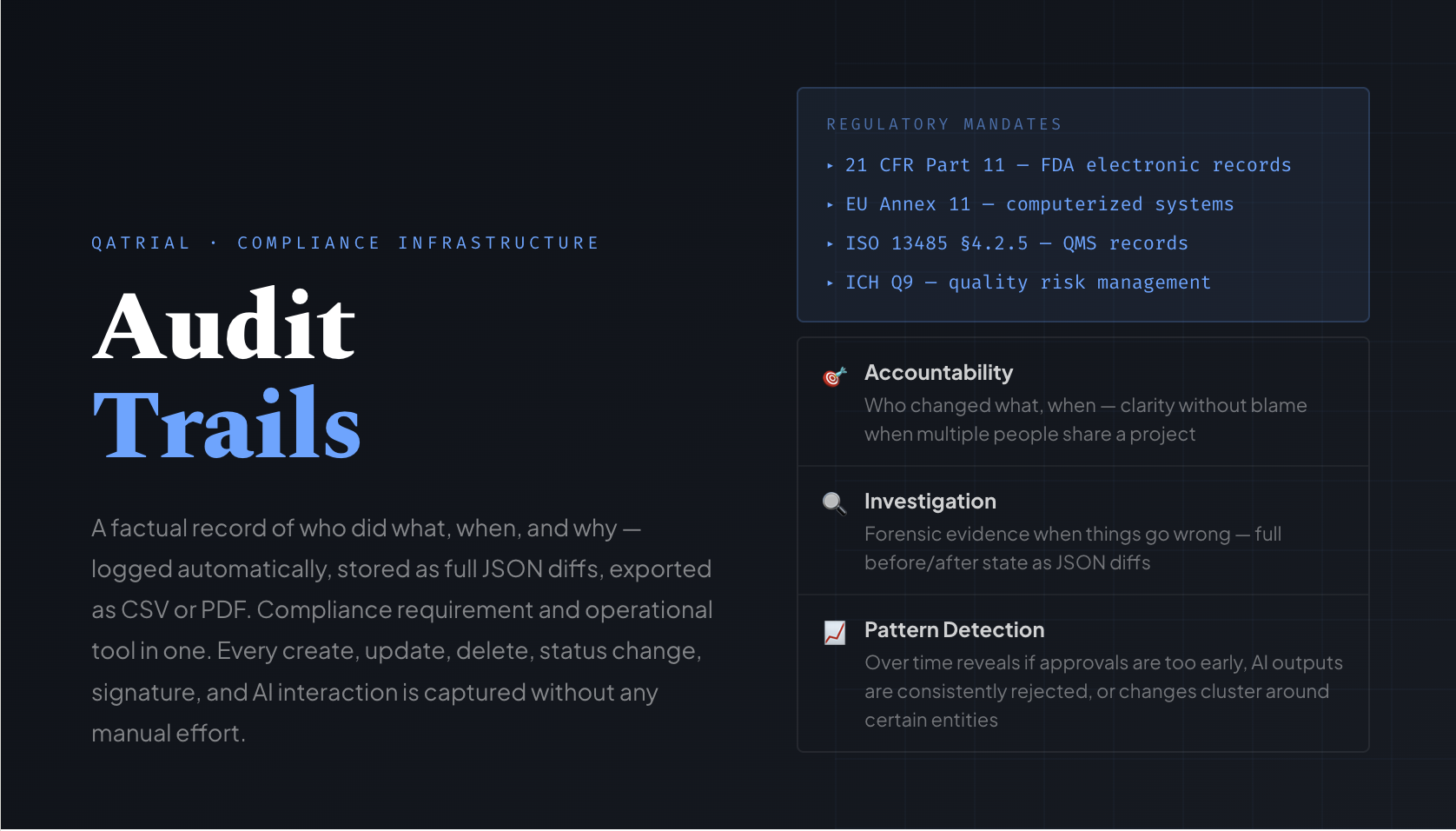
An audit trail is a record of who did what, when, and why. This record serves three purposes that matter every day, not just during audits:
Accountability. When a requirement changes status, a test result is updated, or a CAPA is closed, the audit trail records who made the change and when. This is not about blame — it is about clarity. When three people are working on the same project, knowing who moved a requirement from “Draft” to “Active” eliminates confusion.
Investigation. When something goes wrong — a test that was passing is now failing, a risk level that was “high” is suddenly “low” — the audit trail provides the forensic evidence to understand what changed. You can trace the sequence of events, see the before-and-after values, and determine whether the change was intentional.
Pattern detection. Over time, audit trails reveal patterns. If a particular category of requirements is frequently changed after approval, that suggests the approval process is too early. If AI-generated test cases are consistently rejected, that suggests the prompts need refinement. These patterns are invisible without a systematic record.
Products Worth Considering

Philips Sonicare 5950 Rechargeable Electric Toothbrush with 2 Brush Heads, Pink

OMRON Complete 2-in-1 Upper Arm Blood Pressure Monitor with EKG

Withings Sleep Under-Mattress Sleep Tracking Pad
As an affiliate, we earn on qualifying purchases.
What QAtrial Logs Automatically
QAtrial’s audit trail captures events automatically. You do not need to manually log anything. Every significant action in the system generates an audit trail entry. The following action types are logged:
| Action | When It Fires |
|---|---|
create | A new requirement, test, CAPA record, risk assessment, or evidence item is created |
update | Any field on an existing record is modified |
delete | A record is permanently removed |
status_change | A requirement, test, or CAPA record changes status |
link | A test is linked to a requirement, or a CAPA is linked to a test |
unlink | A test is unlinked from a requirement |
approve | A record receives an approval action |
reject | A record is rejected during review |
sign | An electronic signature is applied to a record |
export | Data is exported (CSV, PDF, or JSON) |
generate_report | A report (VSR, Executive Brief, etc.) is generated |
ai_generate | The AI produces content (test cases, risk classification, CAPA suggestion, gap analysis) |
ai_accept | A user accepts AI-generated content |
ai_reject | A user rejects AI-generated content |
login | A user logs into the system |
logout | A user logs out |
import | Data is imported into the project |
This list covers the full spectrum of quality-relevant actions. AI interactions are explicitly tracked — generating, accepting, and rejecting AI content all create separate audit trail entries, establishing a provenance chain that demonstrates human oversight of AI outputs.
What Each Entry Captures
Every audit trail entry contains a consistent set of fields:
| Field | Description |
|---|---|
timestamp | ISO 8601 timestamp of when the event occurred |
userId | Unique identifier of the user who performed the action |
userName | Display name of the user (for human-readable display) |
action | The action type (create, update, delete, etc.) |
entityType | What kind of record was affected (requirement, test, capa, riskAssessment, evidence) |
entityId | The unique identifier of the affected record (e.g., REQ-001, TST-015) |
previousValue | JSON snapshot of the record’s state before the change (null for create events) |
newValue | JSON snapshot of the record’s state after the change (null for delete events) |
reason | Optional text explaining why the change was made (required in some GxP workflows) |
signature | If the action involved an electronic signature, the full signature record is embedded here |
The previousValue and newValue fields are the most powerful. Because they capture full JSON snapshots, you can always reconstruct exactly what changed. An update to a requirement’s risk level from “medium” to “critical” will show the entire requirement object before and after, with the risk level field clearly different between the two snapshots.
The Timeline View
QAtrial presents the audit trail as a chronological timeline. You can access it in two ways:
Global audit trail: Click the Audit Trail button in the header toolbar. This shows all events across the entire project, newest first.
Per-entity timeline: When viewing a specific requirement, test, or CAPA record, the timeline shows only events related to that entity. This is the view you use most during investigations — you see the complete history of a single record from creation through every modification to its current state.
Expandable Diffs
Each entry in the timeline can be expanded to show the full diff between the previous and new values. The diff display highlights which fields changed, showing the before value and after value side by side. For example, if a requirement’s status changed from “Draft” to “Active” and its description was also updated, both changes are visible in the expanded diff.
Signature Details
When an entry includes an electronic signature, the timeline displays the signature details inline: the signer’s name, role, the meaning of the signature (authored, reviewed, approved, verified, or rejected), the authentication method, and the signature timestamp. This provides a complete signature record within the context of the action it applies to.
Filtering
The global audit trail can be filtered to narrow down the events you need to see:
- Date range: Set a start and end date to focus on a specific time period. Useful during audit preparation (“show me everything that happened in Q3”) or during incident investigation (“show me everything from the last 48 hours”).
- Entity type: Filter by requirements, tests, CAPA records, risk assessments, or evidence. Useful when investigating a specific area of the project.
- Action type: Filter by create, update, delete, status_change, sign, ai_generate, or any other action type. Useful when looking for specific patterns (“show me all AI accepts this month” or “show me all status changes”).
Filters can be combined. You can ask for “all status_change events on requirements between March 1 and March 31” — a common pattern during audit preparation.
How Diffs Add Context
The JSON diff capability is what separates a useful audit trail from a simple event log. An event log tells you “REQ-012 was updated at 14:32 by Jane.” A diff tells you “REQ-012’s risk level was changed from ‘medium’ to ‘high’ and the description was updated to include a reference to ISO 14971 §4.2.”
The previous and new values are stored as complete JSON objects. This means:
- No data is lost — even if a field is removed from the UI in a future version, the historical value is preserved in the JSON snapshot.
- Multi-field changes are captured atomically — if a single edit modifies the title, description, and risk level, all three changes are visible in one diff.
- The trail is self-contained — you do not need to cross-reference another system to understand what changed.
This approach is consistent with 21 CFR Part 11’s requirement that audit trails capture “the date and time of operator entries and actions that create, modify, or delete electronic records” and EU Annex 11’s requirement for “a record of all changes and deletions.”
How Signatures Appear in the Trail
Electronic signatures are embedded directly in the audit trail. When a user applies a signature to a requirement, test, or CAPA record, the trail entry includes:
- signerId: The unique user identifier
- signerName: The display name of the signer
- signerRole: The role of the signer (Admin, QA Manager, QA Engineer, Reviewer)
- timestamp: When the signature was applied
- meaning: The purpose of the signature — authored, reviewed, approved, verified, or rejected
- method: How the user authenticated — password, pin, or biometric
The signature record is permanently bound to the audit trail entry. It cannot be retroactively modified or removed. This immutability is a core requirement of both 21 CFR Part 11 and EU Annex 11.
When you view the timeline for a signed record, the signature appears as a distinct visual element — showing who signed, in what capacity, and when. If multiple signatures are applied (for example, “authored” by an engineer, then “reviewed” by a peer, then “approved” by a manager), each appears as a separate entry in the timeline.
Export: CSV and PDF
QAtrial supports two export formats for audit trail data:
CSV Export
Exports the audit trail as a comma-separated values file. This format is designed for data analysis — you can open it in Excel, load it into a database, or process it with scripts. The CSV includes all fields: timestamp, user, action, entity type, entity ID, previous value, new value, reason, and signature data.
CSV export is useful for:
- Trend analysis (how many changes per week, which entities change most frequently)
- Compliance reporting (generating activity summaries for management review)
- Archival (maintaining an external copy of the audit trail independent of the browser’s localStorage)
PDF Export
Exports the audit trail as a formatted PDF document. This format is designed for audit submission — it produces a human-readable document with a table of events, formatted diffs, and signature records. The PDF includes headers with the project name, export date, and applied filters.
PDF export is useful for:
- Providing audit evidence to external auditors who need a document they can review offline
- Including in regulatory submission packages
- Creating a formal record for management review meetings
Both exports capture the full scope of applied filters, so you can export “all CAPA-related events from January through March” as a focused document rather than exporting the entire project history.
Common Mistakes Teams Make
Even with a good audit trail system, teams undermine its value through avoidable practices:
Not requiring reasons on changes. In GxP environments, the “reason” field on audit trail entries should be treated as mandatory for status changes and significant updates. A trail that shows “risk level changed from medium to critical” without explaining why is nearly as useless as no trail at all. QAtrial supports a reason field on all changes — use it.
Not exporting before audits. The audit trail in QAtrial lives in localStorage. If a user clears their browser data, the trail is gone. Before any audit, export the full audit trail as both CSV and PDF. Store the exports in a controlled location. This is basic data protection, but teams routinely skip it.
Ignoring AI provenance. When an AI-generated test case is accepted, that acceptance is logged. But if the team later modifies the test case without updating the reason field, the trail becomes confusing — it shows AI generation, acceptance, and then an unexplained edit. Document the rationale for post-acceptance modifications.
Treating the audit trail as a compliance artifact rather than an operational tool. The audit trail is most valuable when teams use it daily — to investigate test failures, to review change patterns, to understand why a requirement was modified. Teams that only look at the audit trail during audit preparation miss its operational benefits.
Final Takeaway
An audit trail is a factual record of your project’s quality history. QAtrial logs every significant action automatically — creates, updates, deletes, status changes, links, signatures, AI interactions, imports, and exports. Each entry captures who, what, when, and the full before-and-after state as JSON diffs. The timeline view provides chronological context. Filters let you focus on what matters. Exports produce CSV for analysis and PDF for audit submission.
The audit trail is only as valuable as the discipline around it. Require reasons on changes. Export before audits. Review the trail regularly, not just when an auditor asks for it.
Related Topics
- Electronic Signatures — How signatures are applied, authenticated, and recorded in the audit trail
- Audit Readiness — How daily audit trail practices contribute to continuous compliance readiness
- Reports — How audit trail data is included in Validation Summary Reports and Submission Packages
Review the audit trail UI. Run npm install && npm run dev, and create a project. Make a few changes to requirements and tests, then click the Audit Trail button in the header to see the timeline, diffs, and filtering in action.