

Use this guide to choose a QA automation tool that fits your application, build a small test that checks a real user journey, and run it locally and in continuous integration (CI). It is for developers and QA practitioners who can work with a command line and read basic code, but may be new to test automation. Set aside 2-4 hours for tool selection, setup, a first test, and a CI run. You will finish with a repeatable test and a clear pass or fail result.

Get business pricing on monitors, keyboards and dev gear
- Business-only prices and quantity discounts
- Tax-exempt purchasing
- Multiple users, one account, clear invoices

All You Need to Know About Software Testing: From Beginner to Job-Ready QA Engineer
- ✔ Format: Software testing and QA guide
- ✔ Stated level: Beginner to job-ready
- ✔ Testing coverage: Manual and automated testing

Software Testing Unlocked – A Beginner’s Guide to QA & Automation: 20-Step Journey from Beginner to Your First QA Job
- ✔ Format: Beginner QA and automation guide
- ✔ Stated level: Beginner
- ✔ Learning structure: 20-step journey
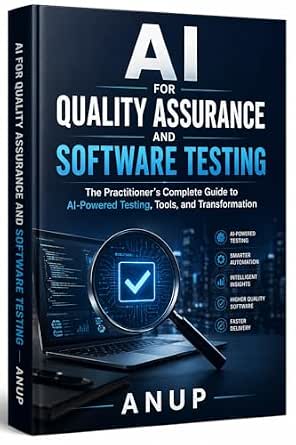
AI for Quality Assurance and Software Testing: The Practitioner’s Complete Guide to AI-Powered Testing, Tools, and Transformation
- ✔ Format: Practitioner guide to AI and testing
- ✔ Stated level: Practitioner-oriented
- ✔ Primary focus: AI-powered quality assurance and software testing
Difficulty: Intermediate | Time: 2-4 hours
What You’ll Need
Tools & Materials:
- A computer with access to the application’s source code and a terminal
- The application running locally or a test environment with a stable URL
- A supported language runtime and package manager, such as Node.js with npm
- Access to the project’s CI system if you plan to add an automated workflow
Knowledge:
- Basic command-line use
- How to run the application and install project dependencies
- Basic familiarity with the user journey you want to test
Choose a non-production environment for tests that submit data or change account state. Use test accounts and data that can be reset. Check the application’s language, framework, browser support, and team familiarity before choosing a tool.
All You Need to Know About Software Testing: From Beginner to Job-Ready QA Engineer
This guide takes the broadest stated route through the lineup: it starts with manual testing and extends to Selenium, Playwright, APIs, and CI/CD pipelines. That breadth makes it the strongest first choice for readers who want to see how automation fits into the surrounding QA workflow, rather than study one specialty alone. Compared with Software Testing Unlocked, it appears to offer more named tools and software engineering context, which may help learners connect test scripts to delivery practices.That wider scope has a cost. The description warns that the material may feel dense to absolute beginners, while the 20-step structure of Software Testing Unlocked sounds more deliberately paced. Its coverage is also not presented as an advanced specialist reference, so experienced engineers seeking deep expertise in a particular framework may need more focused material. We rank it first because its stated mix of foundations and modern automation topics best matches the broad promise of QA automation learning.
Pros:
- Connects manual testing foundations with automation concepts.
- Names Selenium and Playwright as covered tools.
- Includes APIs and CI/CD workflows in the described scope.
- Aims to build practical, job-oriented skills.
Cons:
- The breadth may overwhelm readers with no testing background.
- The description indicates limited attention to highly specialized advanced topics.
Best for: Learners who want a broad, career-oriented introduction spanning manual QA, automation tools, APIs, and CI/CD.
Not ideal for: Absolute beginners who need a slow, highly scaffolded introduction, or experienced testers seeking advanced specialist coverage.
Bottom line: We recommend this as the broadest starting guide for learners who can handle a denser path into QA automation.
“We recommend this as the broadest starting guide for learners who can handle a denser path into QA automation.”
Software Testing Unlocked – A Beginner’s Guide to QA & Automation: 20-Step Journey from Beginner to Your First QA Job
For a reader who is new to software testing, this guide’s clearest advantage is its 20-step structure. The description positions it as a progression from fundamentals toward introductory automation and a first QA job, which gives newcomers a more defined learning path than the broader, potentially denser All You Need to Know About Software Testing. It also includes manual testing basics, a useful foundation for understanding what automated checks can and cannot cover.The tradeoff is depth. Its stated emphasis is on helping beginners get oriented, so readers looking for detailed framework instruction or advanced automation techniques may outgrow it. Compared with the AI-focused guide, it stays closer to core QA learning and is less specialized; compared with the top-ranked broad guide, it appears less expansive in named tools and workflows. We place it second because its accessibility is valuable, but its description offers fewer specifics about the automation topics covered.
Pros:
- Uses a 20-step progression to organize learning.
- Introduces both manual testing and automation basics.
- Targets people pursuing their first QA role.
- Provides a more explicitly beginner-centered path than the broad top pick.
Cons:
- May not cover advanced topics in enough depth for experienced testers.
- The supplied description does not name specific automation frameworks.
Best for: People entering QA who want a staged introduction to manual testing and basic automation concepts.
Not ideal for: Experienced QA professionals who need advanced automation instruction or a detailed reference for specific frameworks.
Bottom line: We would choose this for a structured first pass through QA, then add focused tool training as automation needs grow.
“We would choose this for a structured first pass through QA, then add focused tool training as automation needs grow.”
AI for Quality Assurance and Software Testing: The Practitioner’s Complete Guide to AI-Powered Testing, Tools, and Transformation
This is the most specialized title in the comparison. Its focus is on AI applications in quality assurance, selecting AI-powered testing tools, and planning changes to testing workflows. That makes it a better fit for practitioners evaluating how AI might affect an existing QA process than for someone who first needs to learn what testing or automation means. All You Need to Know About Software Testing has a wider stated foundation in conventional testing tools and delivery workflows; this guide narrows the lens to AI.Specialization also brings uncertainty. The description says the material may be too technical for beginners and notes that AI practices can change quickly, so readers should assess whether its examples and recommendations remain current. It does not name particular AI tools in the supplied details, making it harder to judge the practical specificity in advance. We rank it third for this roundup because AI is an important but narrower slice of QA automation than the foundations and frameworks emphasized by the other picks.
Pros:
- Focuses directly on AI applications in QA and software testing.
- Describes practical guidance for selecting AI-powered testing tools.
- Addresses workflow integration and broader testing transformation.
- Offers a more specialized perspective than the other two guides.
Cons:
- May be too technical for readers without QA or AI background.
- Fast-moving AI practices can make specific recommendations date quickly.
- The supplied description does not name the tools covered.
Best for: QA practitioners and software testers who already understand testing fundamentals and want to evaluate AI-assisted workflows.
Not ideal for: Beginners looking for a complete first course in QA, or readers who need durable, framework-specific automation instruction.
Bottom line: We see this as a targeted companion for practitioners exploring AI in QA, rather than the best first guide to automation testing.
“We see this as a targeted companion for practitioners exploring AI in QA, rather than the best first guide to automation testing.”
As an Amazon Associate we earn from qualifying purchases.
Before You Start
Pick one important, repeatable user journey, such as signing in with a test account or submitting a valid form. Write down the expected result in observable terms: for example, a dashboard heading appears after sign-in. Avoid testing several unrelated workflows in the first test. Confirm that the application can start reliably and that the test environment does not depend on changing production data.
Choose a tool based on the layer you need to test. For browser workflows, Playwright and Cypress provide browser automation and page assertions. Selenium supports a wide range of browsers and languages and is common in established test suites. For APIs, consider a tool such as Postman or a language-native HTTP test library. Match the tool to your stack and existing team practice; do not select by feature list alone.
Step-by-Step Instructions
Step 1: Choose the test layer and tool
Identify whether the user journey needs a browser, an API, or both. Check the tool’s language support, browser needs, reporting, CI compatibility, and setup requirements against your project. If the team already maintains a working test framework, use it unless it cannot cover the workflow. For a new browser suite in a JavaScript or TypeScript project, evaluate Playwright or Cypress; select one and record why it fits.
Tip: Start with one tool for the first workflow. Running multiple overlapping frameworks adds setup and maintenance work.
Check: You can name the test layer, the chosen tool, and how it fits the project’s language and execution environment.
Step 2: Prepare a stable test environment
Start the application locally or open the agreed test environment. Create or identify a test account and a small set of known input data. Confirm the application is reachable in a browser or through its API before adding automation. Keep secrets such as passwords and tokens out of source files; plan to supply them through environment variables or your CI system’s secret storage.
Tip: If a test changes data, use a dedicated account or resettable records so repeated runs do not affect other testers.
Check: The target environment responds, and you can complete the selected journey manually using the test data.
Step 3: Install and initialize the tool
Follow the tool’s current installation instructions for your language and operating system. For a JavaScript project, install the selected package using the project package manager and initialize its configuration if the tool provides a setup command. Keep the lockfile and configuration in the project. Install any required browsers or drivers, then run the tool’s version or help command to confirm it is available.
Tip: Use the project’s existing runtime version and package manager. Mixing package managers can create conflicting lockfiles and dependency versions.
Check: The tool starts from the project directory, required browser components are installed, and the setup files are visible in the project.
Step 4: Create one focused test
Add a test file in the framework’s recommended test directory. Write one test for the chosen user journey: open the application, locate controls using stable labels or accessible roles, perform the needed action, and assert the visible outcome. Use the tool’s documented commands and assertion style. Give the test a descriptive name that states the behavior, such as “valid sign-in opens the dashboard.”
Tip: Prefer labels, roles, and stable test identifiers over fragile selectors based on layout, color, or generated CSS classes.
Check: The test contains a clear action and an assertion that would fail if the expected outcome did not occur.
Step 5: Run the test locally
Start the application if the test configuration does not start it for you, then run the framework’s test command. Watch the browser or request logs on the first run to see which environment the test reaches. If the test fails, read the first meaningful error and compare it with the application’s actual behavior before changing selectors or increasing timeouts.
Tip: Run the test more than once after the first pass. A test that passes only intermittently may depend on timing, shared data, or environment state.
Check: The command exits successfully, reports the test as passed, and repeated runs produce the same result.
Step 6: Add the test to continuous integration
Add a CI job that installs the project dependencies, installs required browsers or drivers, starts the test application or targets the approved test environment, and runs the same test command. Set credentials and URLs through CI environment variables or secret storage. Keep the workflow’s runtime and supported operating system aligned with the tool’s requirements.
Tip: Do not place live credentials in workflow files or test code. Give the CI account only the access needed for the test environment.
Check: The CI job completes and displays a passing test result in its logs or test report.
Step 7: Review the result and make failures diagnosable
Check the local and CI reports for the test name, duration, and failure details. Enable screenshots, traces, video, or request logs on failure when the framework supports them and the artifacts do not expose sensitive data. Confirm the report points to the failed action or assertion, then document the command and environment needed to rerun the test.
Tip: Capture diagnostic artifacts only where access controls and retention rules suit the data shown in screenshots or logs.
Check: A teammate can identify the test outcome and rerun the test using the documented command and environment.
Common Mistakes to Avoid
- Choosing a tool before checking the project’s language, browser, and CI needs. — Compare the project requirements and team familiarity first, then select one tool that covers the chosen workflow.
- Building a large end-to-end suite before proving a single test is reliable. — Start with one high-value journey, run it repeatedly, and expand only after it behaves consistently.
- Using selectors tied to visual layout or generated class names. — Target accessible names and roles, or add stable test identifiers where the interface needs them.
- Hard-coding credentials or relying on shared, changing test data. — Use secret storage for credentials and isolated or resettable data for repeated runs.
Troubleshooting
Problem: The test cannot connect to the application.
Solution: Check that the application is running, confirm the configured URL and port, and verify the CI job can reach the test environment. Review startup logs for a failed server process.
Problem: The browser or driver fails to launch.
Solution: Install the browser or driver version required by the tool, confirm the CI operating system is supported, and check whether the CI runner needs a headless configuration or additional system packages.
Problem: The test passes locally but fails in CI.
Solution: Compare runtime versions, environment variables, browser versions, and application startup timing. Use CI traces or screenshots to locate the first point where the UI differs.
Problem: The test times out waiting for an element.
Solution: Confirm the expected page loaded and the element is present in that state. Prefer the framework’s auto-waiting or condition-based waits; correct the selector or test data instead of adding a large fixed delay.
What Success Looks Like
The selected tool is installed in the project, one focused test checks a real user journey, and the test passes repeatedly on the intended environment. The same command runs in CI and reports a clear result. Failures include enough diagnostic detail for a teammate to investigate, and credentials or sensitive data are handled outside the test source.
Next Steps
After the first test passes, add workflows in order of user impact and failure risk. Keep each test focused, isolate data where possible, and remove dependencies between test cases. Review failures after application changes; update assertions when behavior intentionally changes and fix flaky tests before adding more coverage. Track execution time and failure trends so the suite remains useful to developers.
Frequently Asked Questions
Should I use a browser automation tool or an API testing tool?
Use browser automation when the outcome depends on what a user sees or does in the interface. Use API tests for request and response behavior, authentication rules, and data operations. A project may use both, with each test checking the behavior best suited to its layer.
Which QA automation tool should a beginner choose?
Choose a tool that supports your application’s language and environment and that your team can maintain. Playwright and Cypress are common options for browser testing in JavaScript projects; Selenium supports many languages and browsers. Try one small workflow before committing a large suite.
How many automated tests should I write first?
Write one test for a high-value, repeatable workflow. Confirm that it passes locally and in CI, then add more tests based on user impact and risk.
Why does an automated test pass locally but fail in CI?
CI may use different runtime or browser versions, lack a needed environment variable, or start the application more slowly. Compare configuration and use CI screenshots, traces, and logs to find the first difference.
When should I use UI tests instead of unit tests?
Use unit tests to check small pieces of logic quickly. Use UI automation for a smaller number of important end-to-end journeys that need a real browser. The layers work together: UI tests cover user-visible flows, while lower-level tests cover more cases at lower cost.