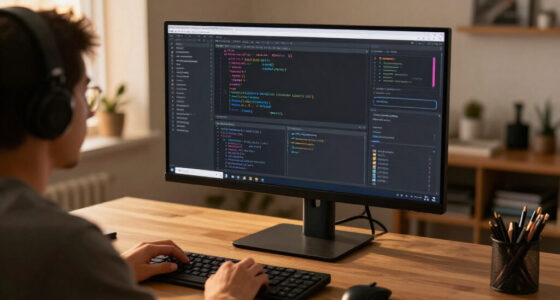
USB-C KVM switches for developers let you share a keyboard, mouse, monitor, and sometimes charging between work computers, but display support and USB-C behavior vary widely. My best overall pick is the Cable Matters 40Gbps USB-C KVM Switch for 2 Laptops, which stands out for its higher bandwidth. For a dual-monitor desk, the ANGEET USB-C KVM Switch pairs two displays with a USB hub and 100W power delivery, while the Cable Matters 20Gbps model with 140W PD favors laptop charging. The central tradeoff is whether you need more display flexibility, faster peripheral data, or stronger charging—and not every USB-C port supports all three. Read on for the full breakdown of the 15 options and how to match one to your developer setup.

Get business pricing on monitors, keyboards and dev gear
- Business-only prices and quantity discounts
- Tax-exempt purchasing
- Multiple users, one account, clear invoices
Key Takeaways
- The Cable Matters 40Gbps switch leads on listed USB bandwidth, making it the clearest fit for developers who connect fast storage or other high-throughput peripherals.
- Dual-monitor designs are not interchangeable. The ANGEET and other two-display models suit expanded desktop workflows, but buyers should confirm their laptop supports the required display mode and monitor arrangement.
- Power delivery varies from 60W to 140W across the named options. A higher PD figure may reduce reliance on a separate charger, but the laptop’s own charging needs and the switch’s power supply still matter.
- Bi-directional switches and KVMs solve different desk problems. Unitek and Rytaki Pro emphasize switching USB-C connections between devices, while full KVM designs target shared monitor and peripheral setups.
- Port layout and computer count change the recommendation. The Cable Matters 3-in-1-out model accommodates more source devices than typical two-computer options, while compact or single-monitor models suit simpler workstations.
| Cable Matters 40Gbps USB-C KVM Switch for 2 Laptops |  | Best for High-Performance Developer Setups | Connections: USB-C, USB4, Thunderbolt 3/4 | Computers supported: 2 laptops | Bandwidth: Up to 40Gbps | VIEW LATEST PRICE | See Our Full Breakdown |
| Cable Matters 20Gbps USB-C KVM Switch for 2 Computers with 140W Power Delivery |  | Best for MacBook-and-Windows Pairings | Connection: USB Type-C | Computers supported: 2 | Data rate: Up to 20Gbps | VIEW LATEST PRICE | See Our Full Breakdown |
| MINIX K1 USB-C KVM Switch for 2 Computers and 1 Monitor |  | Best for a Straightforward Single-Monitor Desk | Computer inputs: 2 USB-C | Monitor output: 1 HDMI | Maximum display: 4K at 120Hz with HDR | VIEW LATEST PRICE | See Our Full Breakdown |
| ANGEET USB-C KVM Switch for 2 Computers and 2 Monitors, Dual 4K@60Hz, 4 USB 3.2 Ports, 100W PD, Wired Remote |  | Best for Windows Dual-Monitor Workstations | Computer inputs: 2 USB-C with MST | Monitor outputs: 2 DisplayPort | Maximum display: Dual 4K at 60Hz | VIEW LATEST PRICE | See Our Full Breakdown |
| USB-C HDMI KVM Switch for 2 Computers and 2 Monitors with 8K@60Hz Support, 100W PD Charging, and 4 USB 3.0 Ports |  | Best for Mixed Laptop-and-Desktop Setups | Computer inputs: 2 computers: 1 USB-C laptop and 1 HDMI desktop | Monitor outputs: 2 HDMI | Maximum video: Up to 8K at 60Hz or 4K at 144Hz | VIEW LATEST PRICE | See Our Full Breakdown |
| Unitek 20Gbps Bi-Directional USB-C Switch for 2 Computers |  | Best for Flexible Single-Link Sharing | Data transfer speed: 20Gbps | Maximum video output: 8K at 60Hz or 4K at 144Hz | Power Delivery: Up to 100W | VIEW LATEST PRICE | See Our Full Breakdown |
| 8K Full USB-C in/Out Dual Monitor KVM Switch, 2 USB-C Laptops Sharing Keyboard Mouse and 2 Monitors, USB 3.0 Hub & Audio, Plug Play for Mac Windows 622T-T |  | Best for Dual USB-C Displays | Computer inputs: 2 USB-C computers | Monitor outputs: 2 USB-C displays | Listed Studio Display resolution: 5120 x 2880 | VIEW LATEST PRICE | See Our Full Breakdown |
| Ouluoa Dual-Monitor USB-C KVM Switch with 8K Display Support and 100W PD |  | Best for a Desktop-and-Laptop Desk | Computer inputs: 1 desktop and 1 laptop | Monitor outputs: 2 HDMI displays | Desktop video support: Up to 8K at 60Hz | VIEW LATEST PRICE | See Our Full Breakdown |
| Cable Matters 20Gbps USB-C KVM Switch for 2 Computers with 140W Power Delivery |  | Best for High-Wattage Laptop Charging | Computer inputs: 2 | Monitor or dock output: 1 USB-C output | Data transfer speed: 20Gbps | VIEW LATEST PRICE | See Our Full Breakdown |
| Hagibis 1×2 USB-C KVM Switch with 100W Power Delivery and 4K@120Hz HDMI |  | Best for a Compact High-Refresh Desk | Switch layout: 1 monitor shared between 2 computers | Video interface: USB-C and HDMI | Maximum video modes: 4K at 120Hz, 1440p at 144Hz, or 1080p at 144Hz | VIEW LATEST PRICE | See Our Full Breakdown |
| RockCheems USB-C KVM Switch with DP-to-USB-C Bridge |  | Best for Apple Pro Displays | Model: RC-KVM-DP001 | Maximum resolution: 5K at 120Hz / 6K at 60Hz | Connectors: USB-C, DisplayPort, USB-A | VIEW LATEST PRICE | See Our Full Breakdown |
| Cable Matters 20Gbps USB-C KVM Switch (3-in-1-Out) with 140W PD Charging |  | Best for Three-Computer Desks | Configuration: 3-in-1-out | Data transfer speed: Up to 20Gbps | Power delivery: 140W | VIEW LATEST PRICE | See Our Full Breakdown |
| Rytaki Pro 20Gbps Bi-Directional USB-C KVM Switch for 2 Computers |  | Best for Flexible USB-C Routing | Model: USBC-AB201-03-J | Switch type: Bi-directional: 2-in-1-out / 1-in-2-out | Data transfer speed: 20Gbps | VIEW LATEST PRICE | See Our Full Breakdown |
| Sabrent USB-C KVM Switch with 60W Power Delivery (USB-CKDH) |  | Best for a Simple 4K Desk | Model: USB-CKDH | Inputs and outputs: 2 × USB-C inputs, 2 × HDMI outputs, 2 × USB-A 2.0 ports | Maximum video resolution: 4K at 60Hz | VIEW LATEST PRICE | See Our Full Breakdown |
| USB-C KVM Switch for 2 Monitors and 2 Computers (1 Laptop, 1 Desktop) |  | Best for Mixed Laptop-and-Desktop Setups | Inputs: 1 × USB-C (MST), 1 × HDMI, 1 × DisplayPort | USB ports: 3 × USB-A 3.0 | Maximum resolution: 4K at 60Hz | VIEW LATEST PRICE | See Our Full Breakdown |
| USB-C KVM switches for developer | Power delivery | Compatibility |
|---|---|---|
| Cable Matters 40Gbps USB-C KVM | Up to 140W pass-through | — |
| Cable Matters 20Gbps USB-C KVM | Up to 140W pass-through | — |
| MINIX K1 USB-C KVM Switch for | Up to 100W, USB-C PD 3.0 | — |
| ANGEET USB-C KVM Switch for 2 | 100W PD port; up to 45W charging per laptop simultaneously | Windows, macOS, Linux, Chrome OS |
| USB-C HDMI KVM Switch for 2 Co | Up to 100W; actual charging may be 73–85W | Windows, macOS, Linux, Nintendo Switch, PS5/4, Xbox |
| Unitek 20Gbps Bi-Directional U | Up to 100W | Windows, macOS, Linux, laptops, tablets, and smartphones |
| 8K Full USB-C in/Out Dual Moni | — | — |
| Ouluoa Dual-Monitor USB-C KVM | — | — |
| Cable Matters 20Gbps USB-C KVM | Up to 140W | USB4 and Thunderbolt 4 |
| Hagibis 1×2 USB-C KVM Switch w | 100W PD 3.0 PPS | Windows, macOS, Linux, and handheld consoles |
| RockCheems USB-C KVM Switch wi | Yes | — |
| Cable Matters 20Gbps USB-C KVM | 140W | — |
| Rytaki Pro 20Gbps Bi-Direction | 140W pass-through | Windows, macOS, Linux, USB-C, Thunderbolt 4 |
| Sabrent USB-C KVM Switch with | Up to 60W per port | Windows 10 and macOS 10.10 or higher with DP Alt Mode support |
| USB-C KVM Switch for 2 Monitor | 100W rated; approximately 73–80W actual output | Windows, macOS, Linux, Chrome OS |
More Details on Our Top Picks
Cable Matters 40Gbps USB-C KVM Switch for 2 Laptops
This is my strongest pick for developers who want to share a high-refresh display or fast dock between two laptops without squeezing the connection down to ordinary USB speeds. Its 40Gbps bandwidth and support for up to 4K at 240Hz or 8K at 60Hz give it more headroom than the 20Gbps Cable Matters model, particularly for demanding monitors and shared peripherals. Up to 140W power delivery can also keep a compatible active laptop charged through the switch. The RF remote is useful when the switch sits out of reach and does not need line of sight. The tradeoff is that 40Gbps remains below an 80Gbps dock’s full bandwidth, and maximum video modes depend on compatible hardware and DSC. It also cannot connect to docks with fixed, non-detachable host cables.
Pros:- 40Gbps bandwidth provides more headroom than the 20Gbps Cable Matters alternative.
- Supports up to 4K at 240Hz or 8K at 60Hz with compatible equipment and DSC.
- Up to 140W power delivery can charge the active laptop.
- RF remote switches without needing line of sight.
Cons:- Cannot connect to docks with built-in, non-detachable host cables.
- Caps the connection at 40Gbps, even with an 80Gbps dock.
- Maximum resolution and refresh rate depend on compatible equipment and DSC.
Best for: Developers switching between two USB4 or Thunderbolt laptops who use a high-refresh monitor or a compatible dock and want strong charging support.
Not ideal for: Anyone with a dock that has permanently attached host cables, or a setup that needs the full bandwidth of an 80Gbps dock.
- Connections:USB-C, USB4, Thunderbolt 3/4
- Computers supported:2 laptops
- Bandwidth:Up to 40Gbps
- Maximum video:8K at 60Hz, 6K at 60Hz, or 4K at 240Hz
- Power delivery:Up to 140W pass-through
- Switching:RF remote or built-in button
- Cable length:1.8m total (1m + 0.8m built-in)
- Warranty:1 year
Our verdict“Choose this for two-laptop setups where high refresh rates, fast shared peripherals, and up to 140W charging matter more than 80Gbps dock support.”
Cable Matters 20Gbps USB-C KVM Switch for 2 Computers with 140W Power Delivery
I’d pick this model when charging capacity matters more than maximum display bandwidth. It switches a compatible USB-C or Thunderbolt 4 monitor or dock between two computers and passes through up to 140W to the active machine. The 20Gbps link is a step down from the 40Gbps Cable Matters switch, but can suit a simpler single-display developer desk that does not need the higher model’s 4K-at-240Hz ceiling. Display limits deserve attention: the listed maximum is up to 8K at 30Hz or 4K at 144Hz on Windows, while macOS is listed up to 4K at 60Hz and supports only one display. Included USB4 cables are required, and some docks—especially those with fixed host leads—may not cooperate. I’d skip it for multi-display Mac workflows or setups that rely on a dock’s full bandwidth.
Pros:- Passes through up to 140W to the active computer.
- Works with compatible USB-C or Thunderbolt 4 monitors and docks.
- Includes two USB-C/USB4 cables for connecting the computers.
- Supports up to 4K at 144Hz on Windows, subject to the setup.
Cons:- 20Gbps bandwidth can limit resolution, refresh rate, display count, or dock performance.
- macOS is listed for one display and up to 4K at 60Hz.
- Some docks with attached host cables may cause compatibility issues.
Best for: Developers alternating between a Windows laptop and a Mac who use one compatible display or dock and want up to 140W pass-through charging.
Not ideal for: Mac users who need multiple external displays, or anyone whose workflow depends on higher bandwidth than 20Gbps or on a dock with fixed host cables.
- Connection:USB Type-C
- Computers supported:2
- Data rate:Up to 20Gbps
- Power delivery:Up to 140W pass-through
- Maximum video:Windows: up to 8K at 30Hz or 4K at 144Hz; macOS: up to 4K at 60Hz
- Included cables:Two 3.3ft USB-C/USB4 cables
- Operating systems:Windows 10 or later; macOS 10.15 Catalina or later
- Enclosure:Aluminum
- Weight:0.3kg
Our verdict“Choose this for a two-computer, one-display desk where strong laptop charging matters more than 40Gbps bandwidth or multi-display Mac support.”
MINIX K1 USB-C KVM Switch for 2 Computers and 1 Monitor
The MINIX K1 is the straightforward choice in this group: it switches two USB-C computers and a single HDMI monitor, with USB-A and USB-C ports for shared desk accessories. Its 4K at 120Hz with HDR support is a useful fit for developers who also want a smooth, capable display for graphics work or gaming. Compared with the ANGEET dual-monitor switch, the K1 gives up a second screen and the larger USB hub, but avoids making dual-display MST support part of the decision. Its 100W PD 3.0 charging is also below the 140W Cable Matters options. Switching is by a physical button, and the display may take 3–5 seconds to sync afterward. The HDMI cable is not included, and it will not suit Apple monitors without HDMI input.
Pros:- Supports one monitor at up to 4K at 120Hz with HDR.
- Provides up to 100W USB-C PD 3.0 charging to the connected computer.
- Includes one USB-C and two USB-A accessory ports.
- Lists compatibility with Windows, macOS, Linux, Android, and Harmony OS.
Cons:- Does not include the HDMI cable needed for the monitor.
- Display sync can take 3–5 seconds after switching.
- Cannot connect to Apple monitors that lack an HDMI input.
Best for: Developers who want to share one HDMI monitor, keyboard, mouse, and other USB accessories between two computers in a compact desk setup.
Not ideal for: People who need two external monitors, 140W laptop charging, or a connection to an Apple display without HDMI input.
- Computer inputs:2 USB-C
- Monitor output:1 HDMI
- Maximum display:4K at 120Hz with HDR
- Power delivery:Up to 100W, USB-C PD 3.0
- Accessory ports:1 USB-C and 2 USB-A
- Switching:Built-in button
- Compatible systems:Windows 10/11, macOS, Linux, Android, Harmony OS
- Included cables:Two USB-C-to-USB-C cables
- Weight:185g
Our verdict“Choose the K1 for a simple one-monitor HDMI desk with 4K high-refresh support, but look to ANGEET if you need two screens.”
ANGEET USB-C KVM Switch for 2 Computers and 2 Monitors, Dual 4K@60Hz, 4 USB 3.2 Ports, 100W PD, Wired Remote
For a developer who keeps documentation, terminals, and an editor open across two screens, the ANGEET offers a more workstation-focused layout than the single-monitor MINIX K1. It connects two USB-C laptops to two DisplayPort monitors and shares four USB peripherals, with data transfer up to 10Gbps. The wired remote gives a convenient switching point, while the panel button remains available at the device. The key caveat is platform support: extended dual displays require a laptop USB-C port with DP Alt Mode, and macOS does not support MST extended displays on this switch, so two screens may mirror. Its stated 45W charging per laptop is more limited than the 140W Cable Matters models. This is a better fit for compatible Windows workstations than for Mac users seeking two independent external displays.
Pros:- Switches two DisplayPort monitors at up to 4K at 60Hz each.
- Shares four USB 3.2 ports, with data transfer up to 10Gbps.
- Offers both a panel button and a wired remote.
- Includes two 40Gbps USB-C cables and a 12V/2A power adapter.
Cons:- macOS does not support MST extended displays, so the monitors may duplicate content.
- Extended display use requires DP Alt Mode on the laptop’s USB-C port.
- Charging is listed at up to 45W per laptop simultaneously, below the 140W Cable Matters options.
Best for: Developers using compatible Windows laptops with DP Alt Mode who want to switch two DisplayPort monitors and four USB peripherals together.
Not ideal for: Mac developers who need two independent external displays, or users who need higher per-laptop charging than the listed 45W simultaneous output.
- Computer inputs:2 USB-C with MST
- Monitor outputs:2 DisplayPort
- Maximum display:Dual 4K at 60Hz
- USB ports:4 total: 3 USB-A and 1 USB-C
- USB data rate:Up to 10Gbps
- Power delivery:100W PD port; up to 45W charging per laptop simultaneously
- Switching:Panel button or 1.5m wired remote
- Compatibility:Windows, macOS, Linux, Chrome OS
- Dimensions:7.48 × 3.15 × 0.79 inches
Our verdict“Choose ANGEET for a compatible Windows dual-monitor desk that needs shared USB peripherals, but skip it for independent dual displays on macOS.”
USB-C HDMI KVM Switch for 2 Computers and 2 Monitors with 8K@60Hz Support, 100W PD Charging, and 4 USB 3.0 Ports
This KVM makes the most sense for a developer pairing a USB-C laptop with an HDMI desktop: unlike the Cable Matters switches, it accepts different host connection types and routes both computers to two HDMI monitors. A front button and wired remote provide two ways to switch, while four USB 3.0 ports keep shared peripherals connected without extra software. The listed video ceiling reaches 8K at 60Hz or 4K at 144Hz, but the data link is only 5Gbps, substantially below the 10Gbps ANGEET and the 20Gbps or 40Gbps Cable Matters models. That makes it a less compelling choice for bandwidth-heavy dock setups. Laptop video also depends on USB-C DP Alt Mode, and high-power USB devices may need a separate 12V/2A adapter for stable operation.
Pros:- Supports mixed hosts: one USB-C laptop and one HDMI desktop.
- Routes both computers to two HDMI monitors.
- Lists video support up to 8K at 60Hz or 4K at 144Hz.
- Includes four USB 3.0 ports and both button and wired-remote switching.
Cons:- 5Gbps data transfer is slower than the ANGEET and Cable Matters alternatives.
- USB-C laptop video requires DP Alt Mode.
- Actual charging may fall to 73–85W, and high-power USB devices may require a separate 12V/2A adapter.
Best for: Developers who need to switch between one USB-C laptop and one HDMI desktop while sharing two HDMI monitors and USB peripherals.
Not ideal for: Users who need high USB data throughput, a uniform USB-C host setup, or reliable laptop charging at the full 100W in every configuration.
- Computer inputs:2 computers: 1 USB-C laptop and 1 HDMI desktop
- Monitor outputs:2 HDMI
- Maximum video:Up to 8K at 60Hz or 4K at 144Hz
- USB ports:4 total: 3 USB-A and 1 USB-C
- USB data rate:Up to 5Gbps
- Power delivery:Up to 100W; actual charging may be 73–85W
- Switching:Front-panel button or wired remote
- Compatibility:Windows, macOS, Linux, Nintendo Switch, PS5/4, Xbox
- Operating voltage:5V
Our verdict“Choose this when mixed USB-C-laptop and HDMI-desktop inputs matter more than fast shared USB data or maximum charging consistency.”
Unitek 20Gbps Bi-Directional USB-C Switch for 2 Computers
The Unitek is the most flexible pick here for developers who want to switch a USB-C display, dock, or peripheral between two computers without committing to a multi-monitor KVM. Its bi-directional 2-in-1-out / 1-in-2-out design lets the connection serve different sharing setups, while 20Gbps data and up to 100W Power Delivery suit fast storage and laptop charging. Compared with the Cable Matters 20Gbps switch, Unitek offers the same headline bandwidth but emphasizes flexible direction rather than 140W charging. The compact aluminum body is easy to place on a crowded desk, though it is not a complete keyboard-and-mouse KVM with multiple display outputs. Check compatibility carefully: video requires DP Alt Mode, Dell docking stations are excluded, and long pigtail dock cables may not work.
Pros:- Bi-directional switching supports two different USB-C sharing arrangements.
- 20Gbps data rate suits fast external storage and other high-bandwidth peripherals.
- 100W Power Delivery can charge a connected laptop during use.
- Compact aluminum construction and Windows, macOS, and Linux compatibility.
Cons:- Video switching depends on DP Alt Mode support from the connected devices.
- Not compatible with Dell docking stations, and long pigtail dock cables are unsupported.
- Thunderbolt 3 devices are limited to single-display output at 4K and 60Hz.
Best for: Developers who need to share one USB-C display, dock, or peripheral between two DP Alt Mode-capable computers and value reversible connection layouts.
Not ideal for: Users with Dell docks, docks with host pigtails longer than 50 cm, or Thunderbolt 3 setups expecting dual displays or more than 4K at 60Hz.
- Data transfer speed:20Gbps
- Maximum video output:8K at 60Hz or 4K at 144Hz
- Power Delivery:Up to 100W
- Switching modes:2 in 1 out / 1 in 2 out
- Material:Aluminum
- Dimensions:2.61 x 2.26 x 0.59 inches
- Compatibility:Windows, macOS, Linux, laptops, tablets, and smartphones
- Video requirement:Connected devices must support DP Alt Mode
Our verdict“Choose the Unitek for compact, reversible USB-C sharing, but skip it if your setup depends on a Dell dock or dual-display KVM switching.”
8K Full USB-C in/Out Dual Monitor KVM Switch, 2 USB-C Laptops Sharing Keyboard Mouse and 2 Monitors, USB 3.0 Hub & Audio, Plug Play for Mac Windows 622T-T
For developers who work across two USB-C monitors, this CKL model takes a different route from the Ouluoa: it connects two USB-C laptops to two USB-C displays, including Apple Studio Display setups, rather than relying on dual HDMI outputs. The listed support reaches 5120 x 2880 for the Studio Display and up to 8K at 30Hz, with the actual result dependent on the computers, cables, monitors, and adapters. Switching options are unusually varied: use a keyboard hotkey, mouse roller, front button, or wired remote. Four additional USB 3.0 ports also give a developer room for shared peripherals. The tradeoff is setup complexity and platform dependence; Mac and Windows behavior differs, and high resolutions or refresh rates are not guaranteed across every configuration. Unlike the simpler Hagibis, this is a two-monitor workspace product, not a compact single-display switch.
Pros:- Supports two USB-C monitor outputs for a dual-display workspace.
- Offers several switching methods, including hotkey, mouse roller, button, and wired remote.
- Four extra USB 3.0 ports expand shared peripheral capacity.
- Designed to connect directly to Apple Studio Display and other USB-C monitors.
Cons:- Resolution and refresh rate depend heavily on the computer, display, cables, and adapters.
- Dual-display behavior and compatibility vary between macOS, Windows, Thunderbolt, and USB4 systems.
- More connections and configuration choices make setup less straightforward than a single-monitor switch.
Best for: Developers using two USB-C laptops and two USB-C monitors, especially Apple Studio Display owners who want shared input devices and several USB peripherals.
Not ideal for: Buyers with a single monitor, limited desk space, or a need for guaranteed high refresh rates across mixed adapters and graphics hardware.
- Computer inputs:2 USB-C computers
- Monitor outputs:2 USB-C displays
- Listed Studio Display resolution:5120 x 2880
- Other listed video modes:Up to 8K at 30Hz, 4K at 144Hz/120Hz, or 1440p at 160Hz, depending on setup
- Shared USB ports:4 USB 3.0 ports, in addition to dedicated keyboard and mouse ports
- Switch controls:Keyboard hotkey, mouse roller, push button, and wired remote
- Compatible systems:Windows 10/11, macOS 15+, Thunderbolt 3/4, and USB4 devices
- Included components:5V power adapter, 4 USB-C cables, wired remote, and user manual
Our verdict“Pick this CKL when two USB-C displays are central to your desk; choose a simpler model if you only need to switch one monitor.”
Ouluoa Dual-Monitor USB-C KVM Switch with 8K Display Support and 100W PD
The Ouluoa suits a common developer pairing: a desktop workstation and a USB-C laptop sharing two HDMI monitors, keyboard, mouse, and other peripherals. Its connection mix is more targeted than the CKL 622T-T, which is built around two USB-C laptops and USB-C displays. The desktop input supports up to 8K at 60Hz, while the laptop input is listed for up to 4K at 60Hz; that difference matters if you expect matching display performance from both machines. 100W PD can keep the laptop powered, and four USB ports provide a useful home for developer tools such as a keyboard, mouse, and storage. The catches are shared USB bandwidth of 5Gbps across those ports and Windows-only MST; macOS is limited to SST mode, so confirm your display layout before choosing it.
Pros:- Shares two HDMI displays between a desktop and a USB-C laptop.
- Provides up to 100W Power Delivery for the laptop connection.
- Includes three USB 3.0 ports and one USB-C port for shared accessories.
- Comes with a wired remote, power adapter, and connection cables.
Cons:- Laptop video is listed up to 4K at 60Hz, below the desktop input’s stated maximum.
- MST is for Windows; macOS uses SST mode.
- The four USB ports share bandwidth, with up to 5Gbps per port stated.
Best for: Developers who alternate between a desktop and a USB-C laptop and want both to share a pair of HDMI monitors and desk peripherals.
Not ideal for: Mac users who need Windows-style MST extended displays, or anyone who needs the laptop input to match the desktop’s 8K capability.
- Computer inputs:1 desktop and 1 laptop
- Monitor outputs:2 HDMI displays
- Desktop video support:Up to 8K at 60Hz
- Laptop video support:Up to 4K at 60Hz via USB-C
- USB ports:3 USB 3.0 and 1 USB-C
- USB data rate:Up to 5Gbps per port; bandwidth shared across four ports
- Power delivery and adapter:100W PD; 12V power adapter
- Display modes:Windows MST; macOS SST
Our verdict“Choose the Ouluoa for a desktop-and-laptop dual-HDMI desk, provided its Windows/macOS display-mode split fits your workflow.”
Cable Matters 20Gbps USB-C KVM Switch for 2 Computers with 140W Power Delivery
Among the single-link switches in this group, the Cable Matters stands out for 140W Power Delivery, giving developers with power-hungry laptops more charging headroom than the Unitek’s 100W limit. It shares one USB-C monitor or Thunderbolt 4 dock between two computers and carries data at 20Gbps, a practical fit for switching between a work laptop and a personal machine without duplicating a dock. Its video ceiling is listed as 8K at 30Hz or 4K at 144Hz on Windows, but macOS is limited to 4K at 60Hz. That makes it less compelling for Mac users seeking high refresh rates or multiple extended displays. The 20Gbps link also falls short of direct 40Gbps Thunderbolt 4, and docks with non-detachable host cables may not connect as intended.
Pros:- Provides up to 140W Power Delivery to the active computer.
- Supports 20Gbps data for shared USB-C monitor or dock connections.
- Works with USB4 and Thunderbolt 4 devices.
- Includes USB4 cables for connecting compatible computers.
Cons:- 20Gbps is below the 40Gbps bandwidth of a direct Thunderbolt 4 connection.
- macOS video support is listed up to 4K at 60Hz, with one extended display through docks.
- May not work with docking stations that have non-detachable host cables.
Best for: Developers switching a USB-C monitor or Thunderbolt 4 dock between two computers, particularly those whose active laptop needs more than 100W charging.
Not ideal for: Mac users seeking high-refresh video or multiple extended displays through a dock, and owners of docks with fixed host cables.
- Computer inputs:2
- Monitor or dock output:1 USB-C output
- Data transfer speed:20Gbps
- Power Delivery:Up to 140W
- Maximum video output:Windows: up to 8K at 30Hz or 4K at 144Hz; macOS: up to 4K at 60Hz
- Compatibility:USB4 and Thunderbolt 4
- Included cable length:3.3 feet (1 meter)
- Color:Black
Our verdict“Choose this Cable Matters switch if 140W charging and dock sharing matter more than full Thunderbolt 4 bandwidth or Mac multi-display flexibility.”
Hagibis 1×2 USB-C KVM Switch with 100W Power Delivery and 4K@120Hz HDMI
The Hagibis is the straightforward choice for a developer who wants to control two computers from one monitor and shared keyboard and mouse, without the dual-display wiring of the Ouluoa or CKL. Its headline is 4K at 120Hz, a useful match for fast-scrolling code, animation work, and smoother cursor movement when the host and display support that mode. 100W PD 3.0 PPS adds laptop charging, while driver-free operation and stated Windows, macOS, and Linux compatibility keep the setup approachable. Compared with the Unitek, Hagibis is more clearly a single-monitor HDMI-oriented KVM, while Unitek offers reversible USB-C sharing and 20Gbps data. Hagibis still depends on host USB-C video support and compatible power delivery; it is not a universal fix for computers lacking DP video over USB-C.
Pros:- Supports video up to 4K at 120Hz, with listed 144Hz modes at lower resolutions.
- 100W PD 3.0 PPS supports charging compatible laptops and devices.
- Driver-free operation and compatibility with Windows, macOS, Linux, and handheld consoles.
- Compact design with a wrap-around cooling vent.
Cons:- Host devices must support DP video over USB-C, or require compatible converters.
- Full power delivery depends on host connection ports supporting the PD protocol.
- Designed around one monitor, so it does not replace a dual-display KVM like the Ouluoa.
Best for: Developers who switch between two computers on one high-refresh HDMI monitor and want a compact, driver-free setup with laptop charging.
Not ideal for: Users building a dual-monitor station, or those whose computers lack USB-C DP video support and suitable PD output.
- Switch layout:1 monitor shared between 2 computers
- Video interface:USB-C and HDMI
- Maximum video modes:4K at 120Hz, 1440p at 144Hz, or 1080p at 144Hz
- Power delivery:100W PD 3.0 PPS
- Ports:7 total ports: 2 HDMI and 4 USB ports, as listed
- Weight:9.7 ounces
- Compatibility:Windows, macOS, Linux, and handheld consoles
- Host video requirement:USB-C host must support DP video protocol
Our verdict“Pick the Hagibis for a simple, compact one-monitor setup with high-refresh video, but choose a dual-monitor model if your workflow needs more screen space.”
RockCheems USB-C KVM Switch with DP-to-USB-C Bridge
For a developer switching between a Mac and Windows workstation on an Apple Studio Display, Pro Display XDR, LG UltraFine, or ASUS ProArt monitor, the included DisplayPort-to-USB-C bridge is the defining feature. It helps preserve the monitor’s camera, microphone, and speakers across both systems, while one-touch switching also routes peripherals and power. Its listed ceiling of 5K at 120Hz or 6K at 60Hz makes it a more display-specialized pick than the Sabrent USB-C KVM Switch, which is capped at 4K at 60Hz. The tradeoff is a narrow two-computer setup and strict cable requirements: standard Thunderbolt cables are not supported, and 5K at 120Hz depends on a GPU with DP 1.4 and DSC. I’d choose it for a premium single-display desk, not a flexible multi-host lab.
Pros:- Supports listed video modes up to 5K at 120Hz or 6K at 60Hz.
- Designed to retain compatible monitor camera, microphone, and speaker functions on both computers.
- Includes a proprietary DisplayPort-to-USB-C bridge cable for the stated monitor and PC combinations.
- One-touch switching combines peripheral control with power delivery over a single-cable workstation connection.
Cons:- Requires its specific included cables; standard Thunderbolt cables are not compatible.
- 5K at 120Hz requires a GPU with DP 1.4 and DSC support.
- Supports only two connected devices.
Best for: Developers alternating between Mac and Windows on a compatible Apple, LG, or ASUS USB-C monitor who want the monitor’s built-in camera and audio to remain available.
Not ideal for: People who want to use standard Thunderbolt cables, connect more than two computers, or need high refresh rates from a GPU without DP 1.4 and DSC.
- Model:RC-KVM-DP001
- Maximum resolution:5K at 120Hz / 6K at 60Hz
- Connectors:USB-C, DisplayPort, USB-A
- Power delivery:Yes
- Compatible devices:Apple Studio Display, Pro Display XDR, LG UltraFine, ASUS ProArt, Mac, Windows PC
- Materials:Metal and plastic
- Dimensions:19.69 × 2.36 × 0.39 inches
Our verdict“Choose the RockCheems if your developer desk centers on a supported premium USB-C display and its built-in features; skip it if you need broader cabling or more host inputs.”
Cable Matters 20Gbps USB-C KVM Switch (3-in-1-Out) with 140W PD Charging
Most USB-C KVMs here focus on two hosts; this Cable Matters model makes room for three computers sharing one USB-C monitor or dock. That suits developers rotating among a work laptop, personal machine, and test system without adding another display path. Its 20Gbps data link and 140W power delivery also give the selected computer a useful combination of peripheral bandwidth and charging, while the RF remote lets you switch without installing software. Compared with the two-host Rytaki Pro, the extra input is the clear reason to choose this one; Rytaki adds bidirectional operation and a physical button instead. The tradeoffs are meaningful for platform-specific setups: macOS is listed at 4K/60Hz, not the higher Windows modes, and only the selected host receives charging. Check dock connections too, since docks with captive cables are not supported.
Pros:- Three computer inputs serve a more complex desk than the two-host Rytaki Pro.
- 20Gbps data transfer supports sharing a high-bandwidth USB-C connection.
- 140W Power Delivery is available to the currently selected computer.
- RF remote switching requires no software or drivers.
Cons:- macOS video output is listed only up to 4K at 60Hz.
- Only the selected computer receives power charging.
- Not compatible with docking stations that have built-in captive cables.
Best for: Developers who regularly switch one USB-C monitor or compatible dock among three computers and want remote switching without a software utility.
Not ideal for: Mac users expecting the listed 8K or higher-refresh Windows modes, or anyone using a dock with a built-in captive cable or needing simultaneous charging for multiple hosts.
- Configuration:3-in-1-out
- Data transfer speed:Up to 20Gbps
- Power delivery:140W
- Maximum resolution, Windows:8K at 30Hz / 5K at 60Hz / 4K at 144Hz
- Maximum resolution, macOS:4K at 60Hz
- Connectivity:USB4, USB-C, Thunderbolt 4
- Switching method:RF remote
- Operating voltage:28V
Our verdict“Pick this Cable Matters switch when three computers must share one compatible USB-C display or dock; choose a two-host model if macOS resolution limits or dock compatibility are a concern.”
Rytaki Pro 20Gbps Bi-Directional USB-C KVM Switch for 2 Computers
The Rytaki Pro suits developers who want one USB-C switch to serve more than a conventional two-computer KVM arrangement: its bi-directional design supports switching two computers to one output or one source between two outputs. It pairs that flexibility with 20Gbps data transfer and up to 140W pass-through power, plus both a push button and wireless remote. Compared with the Cable Matters 3-in-1-Out model, it gives up the third computer input but adds the alternate routing mode and a local button. The aluminum build and plug-and-play operation keep the setup straightforward, but the source device still needs DP Alt Mode for video, and the power adapter is not included. Developers using Dell docks should also check compatibility before choosing it; Thunderbolt 3 systems have a stated single-display limit of 4K at 60Hz.
Pros:- Bi-directional switching supports both two-host/one-output and one-source/two-output arrangements.
- 20Gbps data transfer and up to 140W pass-through power suit demanding USB-C peripherals and laptop setups.
- Offers both wireless remote and push-button control.
- Aluminum construction and driver-free operation work across Windows, macOS, and Linux.
Cons:- Video requires connected devices to support USB-C DP Alt Mode.
- Power adapter is not included.
- Dell docking stations are not supported, and Thunderbolt 3 devices are limited to single-display 4K at 60Hz.
Best for: Developers with USB-C DP Alt Mode systems who want to switch between two hosts and retain the option of sharing one source across two outputs.
Not ideal for: Dell dock users, anyone without a separate power adapter, or Thunderbolt 3 users expecting multi-display output beyond the stated 4K at 60Hz limit.
- Model:USBC-AB201-03-J
- Switch type:Bi-directional: 2-in-1-out / 1-in-2-out
- Data transfer speed:20Gbps
- Power delivery:140W pass-through
- Maximum video resolution:8K at 30Hz / 5K at 60Hz / 4K at 144Hz
- Control:Wireless remote and push button
- Material:Aluminum
- Compatibility:Windows, macOS, Linux, USB-C, Thunderbolt 4
Our verdict“Choose the Rytaki Pro for versatile two-host USB-C routing and remote control, provided your source supports DP Alt Mode and your dock is compatible.”
Sabrent USB-C KVM Switch with 60W Power Delivery (USB-CKDH)
The Sabrent is the straightforward choice for a developer who wants to share a keyboard and mouse between two computers without building a high-bandwidth, multi-host setup around them. Its 4K at 60Hz output, push-button control, LED status indicators, and included mounting bracket favor a tidy fixed workstation. It also supports one or two displays and provides up to 60W Power Delivery, a simpler charging provision than the 100W-rated dual-monitor switch in this roundup. That lower ceiling and the absence of a listed fast USB data rate make it less suited to heavier workstation demands than the Rytaki Pro’s 20Gbps connection. Its one-meter tether can also constrain placement. I’d shortlist it for a modest two-computer desk where uncomplicated switching matters more than high refresh rates or extensive peripheral bandwidth.
Pros:- Supports output up to 4K at 60Hz and one- or two-display arrangements.
- Provides up to 60W USB Power Delivery.
- Push-button switching and LED indicators make the active system easy to identify.
- Includes a one-meter tether, required cables, and a wall-mounting bracket.
Cons:- Video requires host computers to support DisplayPort Alt Mode over USB-C.
- The 60W charging limit may be insufficient for some developer laptops under load.
- The fixed one-meter cable can restrict placement.
Best for: Developers with two DP Alt Mode-capable computers who need a basic 4K/60Hz shared-display setup, simple button switching, and a mountable unit.
Not ideal for: Users who need high-refresh-rate or higher-resolution output, more than 60W charging, or a longer cable run from their computers.
- Model:USB-CKDH
- Inputs and outputs:2 × USB-C inputs, 2 × HDMI outputs, 2 × USB-A 2.0 ports
- Maximum video resolution:4K at 60Hz
- Power delivery:Up to 60W per port
- Switching method:Push button
- Cable length:1 meter (39 inches)
- Mounting:Wall mountable; ABS bracket included
- Compatibility:Windows 10 and macOS 10.10 or higher with DP Alt Mode support
Our verdict“Choose the Sabrent for a simple, mountable two-computer 4K desk; look at a higher-bandwidth model if charging headroom or demanding displays matter more.”
USB-C KVM Switch for 2 Monitors and 2 Computers (1 Laptop, 1 Desktop)
This KVM is aimed at a specific developer desk: one USB-C laptop and one desktop, both sharing two monitors and four USB peripherals. The laptop connects over USB-C with up to 100W Power Delivery, while the desktop uses separate HDMI and DisplayPort inputs. That split makes more sense for a mixed machine setup than the Sabrent USB-CKDH, whose described layout is a dual-USB-C-input design. The tradeoff is that this model’s USB data link is 5Gbps, well below the 20Gbps options from Rytaki Pro and Cable Matters. Dual-monitor behavior also depends on the host: Mac M1/M2 systems do not support MST, so the displays mirror rather than extend. I’d choose it when laptop-desktop compatibility and two screens matter more than higher refresh rates or universal extended-display behavior.
Pros:- Combines a USB-C laptop input with HDMI and DisplayPort desktop inputs.
- Supports two displays at up to 4K at 60Hz, with extend or mirror modes where the host supports them.
- Provides up to 100W USB-C Power Delivery for the laptop.
- Includes panel-button and wired-remote switching, with driver-free compatibility across several operating systems.
Cons:- USB data transfer is limited to 5Gbps.
- Mac M1/M2 systems lack MST support, limiting dual displays to mirrored output.
- Some laptops may show low-wattage charging warnings; actual output is listed around 73–80W despite the 100W PD rating.
Best for: Developers using a USB-C laptop alongside a desktop with HDMI and DisplayPort outputs who want both systems connected to two shared monitors.
Not ideal for: Mac M1/M2 users who require two extended displays, or buyers seeking faster USB data transfer or uncomplicated laptop charging across different PD implementations.
- Inputs:1 × USB-C (MST), 1 × HDMI, 1 × DisplayPort
- USB ports:3 × USB-A 3.0
- Maximum resolution:4K at 60Hz
- Data transfer speed:5Gbps (USB 3.0)
- Power delivery:100W rated; approximately 73–80W actual output
- Switching method:Panel button and wired remote
- Input power:12V/2A DC adapter
- Compatibility:Windows, macOS, Linux, Chrome OS
Our verdict“Pick this model for a two-screen desk shared by a USB-C laptop and an HDMI/DisplayPort desktop, but not if you need Mac M1/M2 extended displays or faster USB transfers.”
How We Picked
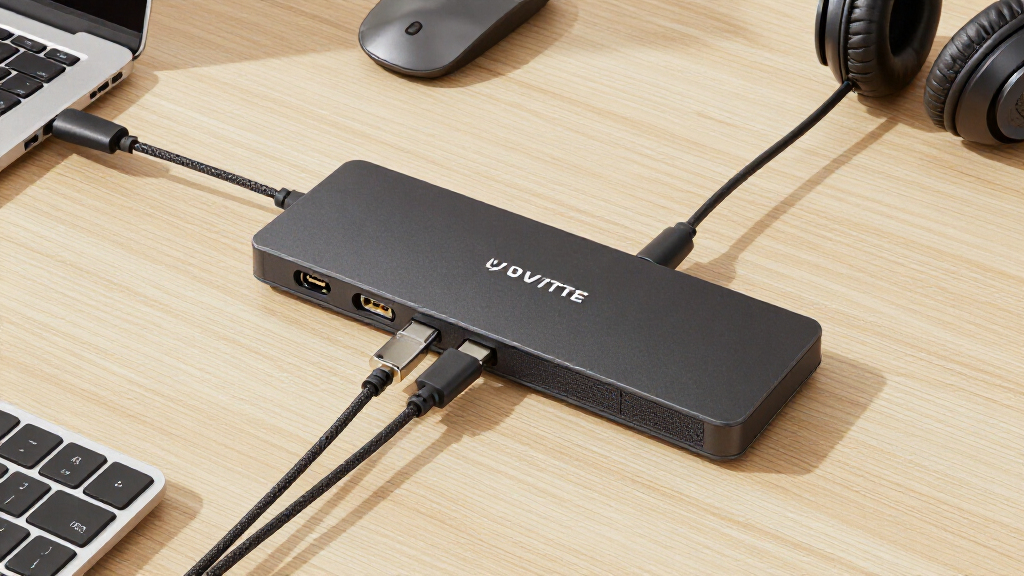
I compared the 15 listed products through the needs that shape a developer workstation: display count and stated resolution or refresh support, USB data bandwidth and port availability, power delivery, supported computer arrangements, and switching flexibility. I also looked at how clearly each product’s listed configuration maps to a real desk, such as two laptops, a laptop plus desktop, or multiple source computers. These distinctions matter because a KVM can share peripherals while still falling short on a laptop’s video output, charging needs, or preferred monitor layout.
The ranking favors products with a clear, useful combination of capabilities for common developer setups, then gives specialized picks credit when they fit a narrower need particularly well. The 40Gbps Cable Matters model ranks as the overall choice on its bandwidth specification; dual-monitor options rise for developers who need more screen space, and higher-PD models suit charging-heavy desks. I treat similarly named Cable Matters 20Gbps models as separate entries only where the listed configuration differs, and I avoid assuming that headline resolutions or charging figures guarantee compatibility with every computer. Buyers should verify host support, cables, power input, and exact port behavior before choosing.
Factors to Consider When Choosing USB-C KVM Switches For Developers
Before choosing a switch, map the signals and devices your desk actually needs to share. USB-C is a connector shape, not a promise of identical video, data, or charging support; the host computer, cable, and switch all affect what works. These checks help avoid buying a device that switches peripherals but cannot deliver the display layout or charging behavior you expect.
Match the Switch to Your Display Topology
Start by writing down how many computers and monitors you want active, then identify which computer feeds each display. Dual-monitor KVMs can be useful for keeping code, documentation, and testing tools visible, but two output ports alone do not prove that every laptop can drive both screens through one USB-C connection. Check whether the host requires DisplayPort Alt Mode, Thunderbolt, or a specific multi-display technology, and confirm your operating system supports the intended arrangement. Pay attention to resolution and refresh-rate claims per output, not just the largest number printed in a product name. A switch that supports a high resolution on one screen may offer different limits when both outputs are occupied. If your setup uses a desktop with DisplayPort or HDMI rather than USB-C video, check for a compatible input path or bridge before ordering.
Treat USB-C Bandwidth as a Shared Budget
USB bandwidth affects more than file transfers: it can shape how well docks, webcams, audio interfaces, and storage behave when they share a connection. A 40Gbps specification, such as the one listed for the leading Cable Matters option, gives more headroom on paper than a 20Gbps model, but the host port and cable must support the relevant mode too. Video transport can also use part of the available link capacity, so a setup with multiple displays and high-speed peripherals deserves extra scrutiny. Avoid assuming that a USB 3.0 hub or a USB-C connector provides the same performance as a higher-bandwidth data path. If your shared devices are mostly keyboard, mouse, and basic audio, paying for more bandwidth may bring little practical benefit. Developers who move large files to external SSDs should check the full signal path rather than relying on the switch specification alone.
Choose Power Delivery for the Laptop You Own
Power delivery can reduce desk clutter, but the advertised maximum is not a universal charging guarantee. Compare the switch’s PD rating with your laptop’s supplied charger and typical workload; a demanding workstation may draw more power than a thin-and-light notebook. Check whether the product needs a separate USB-C power adapter, whether that adapter is included, and which port receives power. A switch can also pass data and video while supplying less power than the laptop expects, leading to slow charging under load. Higher ratings such as 140W are most relevant when the connected computer can accept that level and the complete charging setup supports it. If either computer already has a convenient charger at the desk, a lower-PD model may be a better fit than paying for unused capacity.
Separate Full KVM Switching from USB-C Sharing
A full KVM usually switches both the display path and USB peripherals, while a bi-directional USB-C switch may focus on routing a connection between devices. Those functions are not interchangeable, even when both products use USB-C and support two computers. List every device you expect to control—monitors, keyboard, mouse, webcam, storage, and audio—and check which signals the switch actually routes. A USB-only switch can work well when monitors already have their own inputs or when you change screens manually, but it will not replace a video KVM in a one-button desk setup. Also check whether switching is controlled by a button, wired remote, or another method that suits the placement of the unit. This distinction can prevent buying a compact switch that solves peripheral sharing but leaves the main monitor problem unsolved.
Plan for Mixed Laptop and Desktop Connections
Many developers pair a USB-C laptop with a desktop that uses separate video and USB connections, so count the required inputs before settling on a model. Products listing a 3-in-1-out arrangement may suit more source devices than a standard two-computer switch, while a DP-to-USB-C bridge can address a different connection mismatch. Neither label alone confirms that every video and peripheral signal will pass as expected; verify the exact input and output roles in the manual. Make a simple connection map for each computer, including any adapters, docks, and power supplies. Each extra adapter adds another compatibility point and may limit resolution, refresh rate, or charging. If one computer cannot provide video over USB-C, prioritize a model with an explicitly supported alternative video input rather than assuming a USB-C cable will carry the desktop’s display signal.
Check Switching Behavior and Desk Practicalities
For frequent context changes, switching speed and control placement can matter as much as headline specifications. A wired remote can keep the KVM itself out of reach, while an on-device button may be simpler for a compact desk. Check whether the switch changes all connected signals together and whether any devices need to be re-enumerated after switching; this can affect webcams, audio interfaces, and developer peripherals. Cable length and connector placement also determine whether the unit can sit neatly beside a monitor or must stay near the computers. A tidy setup is easier to maintain when you can label the source cables and access the power connection without unplugging the whole desk. Before buying, confirm the included cables and power accessories, since a capable switch may still need additional cables that support the required data rate, display mode, or PD level.
Frequently Asked Questions
Will a USB-C KVM work with a laptop that has USB-C but no Thunderbolt?
Possibly, but the USB-C connector alone does not tell you whether the laptop can send video through it. Check the laptop specifications for DisplayPort Alt Mode or another video output mode required by the KVM, then compare that with the switch’s input requirements. A USB-C port that supports charging and data only may not drive a monitor through the switch. For a dual-monitor setup, verify the laptop’s display limits as well as the switch’s stated limits. If the laptop lacks a suitable video path, a USB-only switch may still share peripherals, but it will not solve monitor switching.
Is a 140W Power Delivery KVM better than a 100W model for my laptop?
Only if your laptop and the rest of the charging chain can use the extra capacity. Check the computer’s required adapter wattage and the KVM’s power input and output details; a maximum rating does not mean every connected laptop receives that amount in every setup. A 100W unit may be sufficient for many everyday notebooks, while a higher-demand workstation may benefit from more headroom. If the laptop still drains under a heavy development workload, use its own charger or choose a switch with a verified charging path that meets its requirements. Compare the exact model documentation rather than choosing by the largest number alone.
Can one USB-C KVM run two monitors from a MacBook?
That depends on the MacBook model, its supported external-display count, and the KVM’s method for carrying video. Some Macs support fewer native external displays than a dual-monitor switch can physically connect, so two outputs on the KVM do not automatically mean two independent screens will work. Check whether the switch relies on a display technology supported by your Mac and whether that technology needs software or a dock. Confirm the supported resolution and refresh rate when both monitors are connected, not just for a single display. If the laptop’s limit is the bottleneck, a different KVM will not remove it.
Should I choose a bi-directional USB-C switch or a full KVM?
Choose a full KVM if you want the same control to switch your monitor and USB peripherals between computers. A bi-directional USB-C switch is a better match when you mainly need to route a USB-C connection or shared peripherals and can handle monitor inputs separately. Read the port diagram closely, because product names may not make clear whether video is switched along with USB data. Think through your daily routine: manually changing monitor inputs may be acceptable if you switch rarely, but it can become tedious when you move between machines often. If your workflow depends on a single action changing the whole desk, confirm that the model explicitly switches every required signal.
What should I check before connecting an external SSD and two monitors to the same KVM?
Check the switch’s USB data rate, display limits with both monitors active, host-port capability, and the specifications of every cable in the path. The SSD may share bandwidth with other USB devices, while video transport can also affect the available link depending on the design. A stated 40Gbps or 20Gbps figure describes a link capability, not a guarantee that all connected devices receive that rate at once. Confirm that the laptop supports the intended monitor count and that the KVM’s hub ports meet the SSD’s connection requirements. If fast storage performance is central to your work, test the full configuration against the manufacturer’s documented modes before relying on it for daily transfers.
Conclusion
For most developers choosing among these listings, I would start with the Cable Matters 40Gbps USB-C KVM Switch for 2 Laptops as the best overall pick, especially when fast shared peripherals matter. The Cable Matters 20Gbps model with 140W PD is the best value direction for buyers whose priority is laptop charging and a straightforward two-computer setup; check the exact listing details, since two entries share a similar name. For a best premium-style dual-display setup, the ANGEET dual-monitor KVM stands out for its listed two-screen support, USB hub, and 100W PD, though host compatibility needs checking. Beginners with one monitor and two computers may prefer the simpler MINIX K1 configuration over a more complex multi-display switch. For specific needs, choose the Cable Matters 3-in-1-out when you need three source connections, or a Unitek or Rytaki Pro bi-directional switch when USB-C routing—not full monitor control—is the main job. Match the pick to your actual ports, displays, charging needs, and switching routine before buying.