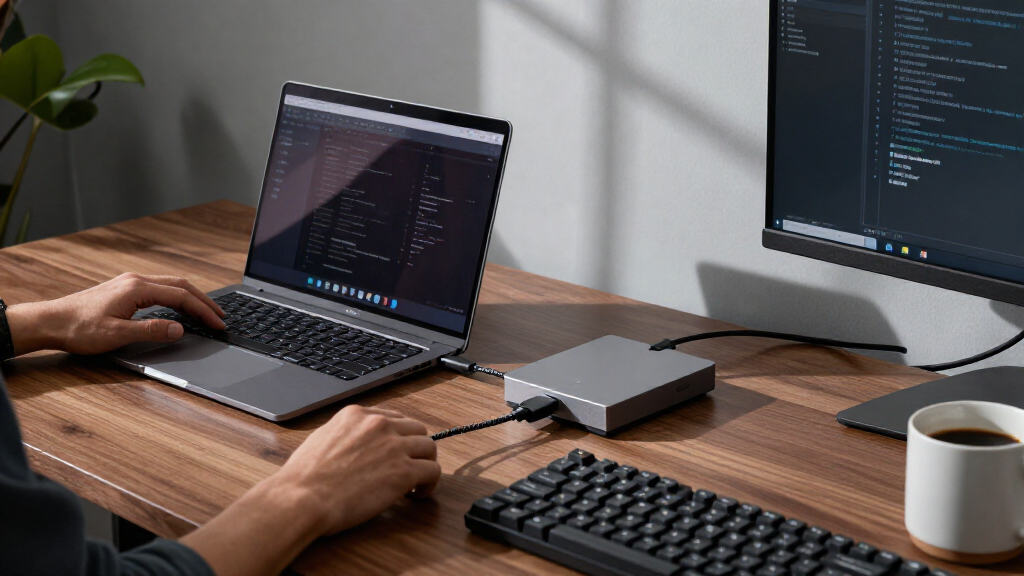

Developer laptop docking stations can turn a single laptop connection into a workspace for external monitors, wired networking, peripherals, and charging. My best overall pick is the TobenONE MacBook Docking Station for its dual 4K monitor support, 2.5Gbps Ethernet, and broad USB connectivity. The Anker Prime 14-in-1 is a standout for a more feature-rich desk setup, while the Plugable USB 3.0 Universal Dock suits buyers who need broad laptop compatibility and dual HDMI outputs. The main tradeoffs are native video support versus DisplayLink, the number of displays versus setup simplicity, and a full dock’s desk footprint versus a compact hub’s portability. Read on for the full breakdown, selection criteria, and advice on matching a dock to your laptop and monitors.

Get business pricing on monitors, keyboards and dev gear
- Business-only prices and quantity discounts
- Tax-exempt purchasing
- Multiple users, one account, clear invoices
Key Takeaways
- Display support shapes the shortlist: the TobenONE MacBook dock pairs dual 4K monitor support with 2.5Gbps Ethernet, while the WAVLINK DisplayLink model is the lineup’s pick for connecting as many as five displays.
- DisplayLink adds flexibility, not a universal upgrade: several picks use it for multi-monitor setups, but buyers should check software needs and operating-system compatibility before choosing one.
- Ports matter most when they replace daily adapters: the Anker Prime, Belkin 14-Port, and TobenONE 19-in-1 emphasize broad desktop connectivity, while smaller hubs suit simpler or mobile setups.
- Triple-display docks are not interchangeable: Plugable, Acer, and TobenONE models offer different combinations of display support and port counts, so check the exact output arrangement rather than relying on the display count alone.
- Charging claims need a laptop check: docks listing up to 100W delivery can reduce charger clutter, but the laptop’s USB-C charging requirements and the dock’s power allocation affect the result.
| TobenONE MacBook Docking Station with Dual 4K Monitors, 7 USB Ports, and 2.5Gbps Ethernet |  | Best for MacBook Developers | Display support: Dual 4K at 60Hz via HDMI | USB ports: 7 | Total ports: 16 | VIEW LATEST PRICE | See Our Full Breakdown |
| Anker Nano 13-in-1 Laptop Docking Station with Detachable 6-in-1 USB-C Hub |  | Best Desk-and-Travel Pick | Ports: 13 total | USB ports: 5 total | Display outputs: 2 HDMI and 1 DisplayPort | VIEW LATEST PRICE | See Our Full Breakdown |
| HP USB-C Dock G5 Docking Station with Dual Monitor Support |  | Best for Compatible HP Fleets | Model: 5TW10AA G5 | USB ports: 5 | Video connections: 2 DisplayPort and 1 HDMI | VIEW LATEST PRICE | See Our Full Breakdown |
| TobenONE 15-in-1 USB-C Laptop Docking Station with Dual HDMI and 100W Power Delivery |  | Best Value for Linux and Windows Desks | Model: UDS059 | Total ports: 15 | USB ports: 5: 2 USB-C 10Gbps, 1 USB-A 10Gbps, and 2 USB-A 5Gbps | VIEW LATEST PRICE | See Our Full Breakdown |
| Anker Prime 14-in-1 Laptop Docking Station with Dual Displays |  | Best for Multi-Device Charging | Connectivity: 14-in-1 | USB ports: 10 | Maximum total output: 160W | VIEW LATEST PRICE | See Our Full Breakdown |
| WAVLINK Pro DisplayLink Docking Station for Up to Five Displays |  | Best for Maximum Display Expansion | Chipset: DisplayLink DL7400 | Maximum displays: Up to 5; fifth requires USB-C video output (Alt Mode) | DisplayPort: 2 outputs; up to 8K at 60Hz or 4K at 120Hz | VIEW LATEST PRICE | See Our Full Breakdown |
| Plugable USB 3.0 Universal Laptop Docking Station with Dual HDMI |  | Best for Legacy 1080p Developer Setups | Video outputs: 2x HDMI | Dual-display resolution: Up to 1920×1200 at 60Hz | Single-display resolution: Up to 2560×1440 at 50Hz | VIEW LATEST PRICE | See Our Full Breakdown |
| Acer 9-in-1 USB-C Docking Station with Dual HDMI |  | Best for a Modern Dual-4K Desk | Ports: 9 total: 2 HDMI, 3 USB-A, 1 USB-C, SD, and MicroSD | HDMI resolution: Up to 4K at 60Hz | Power delivery: Up to 100W input; up to 90W to laptop | VIEW LATEST PRICE | See Our Full Breakdown |
| Anker PowerExpand 8-in-1 USB-C Hub with Dual HDMI |  | Best Compact Travel Hub | Ports: 8 | HDMI: 2 ports; up to 4K at 60Hz on one display or 4K at 30Hz on two | USB-A data ports: 2 | VIEW LATEST PRICE | See Our Full Breakdown |
| Belkin 14-Port Dual Display USB-C Docking Station with DisplayLink |  | Best for a Clean, VESA-Mounted Desk | Ports: 14 | Display support: Up to 2 monitors via HDMI or DisplayPort | Maximum display resolution: 4K at 60Hz | VIEW LATEST PRICE | See Our Full Breakdown |
| Plugable 13-in-1 USB-C Triple Monitor Docking Station with 100W Charging |  | Best for Triple-HDMI Workspaces | Total ports: 13 | Video outputs: 3 HDMI | Display limits: HDMI 1: up to 4K at 30Hz; HDMI 2 and 3: up to 1920×1200 at 60Hz | VIEW LATEST PRICE | See Our Full Breakdown |
| Plugable USB-C Triple Display Docking Station with 100W Power Delivery |  | Best for a Compact Triple-Display Desk | Hardware interface: USB-C | Video outputs: 3 HDMI | Display limits: 1× 4K at 30Hz and 2× 1080p at 60Hz | VIEW LATEST PRICE | See Our Full Breakdown |
| Acer 13-in-1 USB-C Laptop Docking Station with Triple Display Support |  | Best for Windows MST and Mixed Video Ports | Port count: 13 | Video outputs: 2 HDMI and 1 DisplayPort 1.4 | Display support: Up to three independent displays on compatible Windows laptops via MST | VIEW LATEST PRICE | See Our Full Breakdown |
| TobenONE 19-in-1 Laptop Docking Station with Dual 4K HDMI |  | Best for Port-Heavy Windows Setups | Total ports: 19 | USB ports: 10 | Video outputs: 2 HDMI, up to 4K | VIEW LATEST PRICE | See Our Full Breakdown |
| MOKiN 14-in-1 USB-C Laptop Docking Station with Dual HDMI and DisplayPort |  | Best for Mixed HDMI and DisplayPort Monitors | Port count: 14 | Video outputs: 2 HDMI and 2 DisplayPort | USB ports: 2 USB-C 3.0, 1 USB-A 3.0, 2 USB-A 2.0 | VIEW LATEST PRICE | See Our Full Breakdown |
| developer laptop docking station | USB ports | Compatibility | Dimensions and weight |
|---|---|---|---|
| TobenONE MacBook Docking Stati | 7 | Selected Intel and M-series MacBook Air and Pro models | 4.7 × 2.9 × 2.3 in; 351 g |
| Anker Nano 13-in-1 Laptop Dock | 5 total | USB-C and Thunderbolt 3/4/5 laptops; Windows and macOS | — |
| HP USB-C Dock G5 Docking Stati | 5 | — | 4.8 × 4.8 × 1.8 in; 1.63 kg |
| TobenONE 15-in-1 USB-C Laptop | 5: 2 USB-C 10Gbps, 1 USB-A 10Gbps, and 2 USB-A 5Gbps | Windows, ChromeOS, and Linux laptops with full-featured USB-C or Thunderbolt 3/4 | 11.81 × 3.14 × 0.86 in; 6.24 oz |
| Anker Prime 14-in-1 Laptop Doc | 10 | — | — |
| WAVLINK Pro DisplayLink Dockin | 5 total; USB-C and USB-A 3.2, up to 10Gbps | Windows 10+, macOS 11.x+, ChromeOS; USB-C, USB4, Thunderbolt 3/4/5, or USB-A hosts | 9.65 x 3.7 x 1.48 inches; 1.8 pounds |
| Plugable USB 3.0 Universal Lap | 2x USB 3.0 and 4x USB 2.0 | Windows 10 or later, macOS 14 or later, ChromeOS 100 or later; not Linux/Unix | 4.9 × 2.8 × 7.7 inches; 13 ounces |
| Acer 9-in-1 USB-C Docking Stat | — | Windows and macOS devices with USB-C DisplayPort Alt Mode | — |
| Anker PowerExpand 8-in-1 USB-C | — | USB-C, USB4, and Thunderbolt; Windows 10/11 and ChromeOS; Linux not supported | 4.65 × 2.01 × 0.69 inches; 3.2 ounces |
| Belkin 14-Port Dual Display US | — | USB-C devices; Windows, macOS, and ChromeOS | 5.32 x 3.74 x 1.46 inches; 1.03 pounds |
| Plugable 13-in-1 USB-C Triple | 4 USB-A at 5Gbps; front USB-C provides up to 20W charging | Windows 10 or later, macOS 11 or later, ChromeOS; USB-C, USB4, or Thunderbolt | 12 × 6.7 × 17.5 in; 400 g |
| Plugable USB-C Triple Display | 6 | — | 3.3 × 7.9 × 1.2 in; 332 g |
| Acer 13-in-1 USB-C Laptop Dock | — | — | — |
| TobenONE 19-in-1 Laptop Dockin | 10 | — | — |
| MOKiN 14-in-1 USB-C Laptop Doc | 2 USB-C 3.0, 1 USB-A 3.0, 2 USB-A 2.0 | — | — |
More Details on Our Top Picks
TobenONE MacBook Docking Station with Dual 4K Monitors, 7 USB Ports, and 2.5Gbps Ethernet
For a MacBook developer who wants two high-resolution work screens and a wired network connection, this dock combines dual 4K at 60Hz with unusually fast 2.5Gbps Ethernet. Seven USB ports also leave room for a keyboard, storage, and other desk gear, while one cable handles the laptop connection and up to 100W pass-through charging. Compared with the TobenONE 15-in-1, this model is more Mac-focused and offers faster networking, but it is not the better fit for a mixed Windows/Linux desk. Its biggest limitation is chip-dependent display support: some base M1, M2, and M3 MacBooks can run only one external monitor. It also excludes Apple monitors and does not support Windows laptops, so check your exact MacBook model before choosing it.
Pros:- Supports two 4K displays at 60Hz on compatible MacBooks
- 2.5Gbps Ethernet is faster than the Gigabit connection on the TobenONE 15-in-1
- Seven USB ports help keep desk peripherals connected
- Provides up to 100W laptop pass-through and a separate 20W USB-C charging port
Cons:- Some base M1, M2, and M3 MacBooks support only one external display
- Does not work with Windows laptops
- Not compatible with Apple monitors
Best for: MacBook developers with a compatible Pro or Max chip who need two 4K external displays, several USB accessories, and faster-than-gigabit Ethernet.
Not ideal for: Developers using Windows laptops, Apple monitors, or base-chip M1, M2, and M3 MacBooks that need two external screens.
- Display support:Dual 4K at 60Hz via HDMI
- USB ports:7
- Total ports:16
- Ethernet:2.5Gbps
- Laptop power delivery:Up to 100W pass-through
- Additional USB-C charging:20W
- Compatibility:Selected Intel and M-series MacBook Air and Pro models
- Dimensions and weight:4.7 × 2.9 × 2.3 in; 351 g
Our verdict“Choose this Mac-focused dock if your MacBook supports dual external displays and you value fast wired networking; skip it for mixed-platform desks.”
Anker Nano 13-in-1 Laptop Docking Station with Detachable 6-in-1 USB-C Hub
The Anker Nano’s defining advantage is its detachable 6-in-1 hub: keep the larger dock at your workstation, then take the smaller hub along for meetings or travel. That flexibility suits developers who split their time between a fixed multi-monitor setup and a laptop bag. It supports up to three displays on compatible systems, but the mode depends on the computer: macOS mirrors external screens, so it is not the choice for Mac users who need separate extended desktops. Compared with the Anker Prime 14-in-1, the Nano offers a portable hub and a DisplayPort output, while the Prime emphasizes more USB connections and total charging output. The Nano’s display modes also cap out at dual 2K or triple 1080p, and its ports need a connected laptop to operate.
Pros:- Detachable 6-in-1 hub serves as a travel companion
- Supports up to three external displays on compatible systems
- Provides up to 100W laptop charging and up to 10Gbps data transfer
- Includes a 140W power adapter and USB-C cable
Cons:- macOS mirrors external displays rather than extending them independently
- Maximum display modes are single 4K, dual 2K, or triple 1080p at 60Hz
- Dock ports require a connected laptop to activate
Best for: Developers who work at a multi-display desk but also need a compact hub for travel, especially Windows laptop users who can use extended displays.
Not ideal for: Mac developers who need separate external desktops, or anyone seeking three high-resolution monitors or a dock that runs its ports independently of the laptop.
- Ports:13 total
- USB ports:5 total
- Display outputs:2 HDMI and 1 DisplayPort
- Maximum display modes:Single 4K at 60Hz, dual 2K at 60Hz, or triple 1080p at 60Hz
- Laptop charging:Up to 100W Power Delivery
- Maximum data transfer:10Gbps
- Network and card readers:Gigabit Ethernet; SD and TF card slots
- Compatibility:USB-C and Thunderbolt 3/4/5 laptops; Windows and macOS
- Included power adapter:140W
Our verdict“Pick the Nano if you want one setup for desk work and travel, provided its operating-system display limits match your workflow.”
HP USB-C Dock G5 Docking Station with Dual Monitor Support
This HP USB-C Dock G5 makes the most sense as a model-matched office dock, not as a universal developer accessory. Its DisplayPort and HDMI connections, Gigabit Ethernet, USB ports, and included 120W power supply cover the basics for a compatible HP laptop workstation. The key advantage over the more broadly compatible TobenONE 15-in-1 is its fit with the listed HP EliteBook, ProBook, Elite x2, and Mobile Thin Client models; the tradeoff is that the product data names a specific set of compatible HP machines rather than a broad range of USB-C laptops. Its dual-monitor setup may suit coding and documentation side by side, but the supplied information does not state a maximum resolution or refresh rate. I would verify both laptop compatibility and display requirements before building a desk around it.
Pros:- Offers two DisplayPort outputs plus an HDMI connection
- Includes Gigabit Ethernet for a wired network connection
- Combines USB, USB-C, and audio connectivity
- Comes with a 120W power supply
Cons:- Compatibility information is limited to specific HP laptop models
- Maximum display resolution and refresh rate are not specified in the supplied data
- At 1.63 kg, it is less suited to frequent travel than the detachable Anker Nano
Best for: Developers using one of the listed HP EliteBook, ProBook, Elite x2, or Mobile Thin Client models who need a straightforward dual-display desk dock.
Not ideal for: Developers with non-listed laptops, Linux workstations needing confirmed support, or anyone who needs documented high-resolution display performance.
- Model:5TW10AA G5
- USB ports:5
- Video connections:2 DisplayPort and 1 HDMI
- Other connections:USB-C, audio, and Ethernet
- Network:Gigabit Ethernet
- Power supply:120W
- Listed compatibility:Selected HP Elite x2, EliteBook, Mobile Thin Client, and ProBook models
- Dimensions and weight:4.8 × 4.8 × 1.8 in; 1.63 kg
- Warranty:1 year
Our verdict“Choose this dock for a listed HP laptop and a conventional office setup, but confirm display capability and compatibility before buying.”
TobenONE 15-in-1 USB-C Laptop Docking Station with Dual HDMI and 100W Power Delivery
For developers who want two 4K screens without narrowing their choice to a Mac-specific dock, the TobenONE 15-in-1 is a flexible USB-C and Thunderbolt workstation hub. Its dual HDMI outputs, five USB ports, card readers, Gigabit Ethernet, and audio connection can consolidate a busy desk, while listed support for Linux, Windows, and ChromeOS makes it more platform-flexible than the Mac-only TobenONE dual-4K model. The 100W pass-through can power a compatible laptop, but the required USB-C charger is not included, so factor that into the setup. A physical volume knob is a handy desk control, though it matters less to developers who manage sound through software. Compatibility also depends on having a full-featured USB-C or Thunderbolt 3/4 port; a basic USB-C data port will not be enough.
Pros:- Supports two 4K displays at 60Hz through HDMI
- Works with listed Windows, ChromeOS, and Linux laptop configurations
- Includes SD and microSD readers, Gigabit Ethernet, and 3.5 mm audio
- Physical volume knob offers quick audio adjustment
Cons:- USB-C charger is not included
- Requires a full-featured USB-C or Thunderbolt 3/4 port
- Gigabit Ethernet is slower than the 2.5Gbps connection on the Mac-focused TobenONE dock
Best for: Windows, Linux, or ChromeOS developers with full-featured USB-C or Thunderbolt 3/4 laptops who want dual 4K displays, card readers, and a broad set of desk connections.
Not ideal for: Laptop owners with USB-C ports limited to data, or buyers who expect a power adapter to be included.
- Model:UDS059
- Total ports:15
- USB ports:5: 2 USB-C 10Gbps, 1 USB-A 10Gbps, and 2 USB-A 5Gbps
- Display outputs:2 HDMI; up to 4K at 60Hz
- Power delivery:Up to 100W pass-through; charger not included
- Card readers and audio:SD and microSD 3.0; 3.5 mm audio
- Ethernet:Gigabit
- Compatibility:Windows, ChromeOS, and Linux laptops with full-featured USB-C or Thunderbolt 3/4
- Dimensions and weight:11.81 × 3.14 × 0.86 in; 6.24 oz
Our verdict“Choose this for a broadly compatible dual-4K desk setup if your laptop supports video over USB-C and you already have a suitable charger.”
Anker Prime 14-in-1 Laptop Docking Station with Dual Displays
The Anker Prime prioritizes a crowded developer desk where charging several devices matters as much as connecting displays. Its 14 ports and 10 USB connections pair with up to 160W total output, including up to 100W from a USB-C port, so a laptop and peripherals can share one dock. Compared with the Anker Nano, it gives more USB connections and higher stated total charging output, but it lacks the Nano’s detachable travel hub. Display support is also more modest than the dual-4K TobenONE options: with DP 1.4 laptops, dual HDMI reaches up to 2K at 60Hz, and DP 1.2 lowers that to 1080p at 60Hz. macOS mirrors the external displays, Linux is unsupported, and the plastic enclosure and stated weight make this a desk-oriented choice rather than a light travel dock.
Pros:- Ten USB ports support a large mix of developer peripherals
- Provides up to 160W total output and up to 100W USB-C charging per port
- Transfers data at up to 10Gbps
- Supports dual HDMI displays on compatible Windows and ChromeOS laptops
Cons:- Linux is unsupported
- macOS mirrors the image across external displays
- Dual-display resolution is limited to 2K at 60Hz with DP 1.4 or 1080p at 60Hz with DP 1.2
- Does not support 5120 × 1440 monitors
Best for: Windows or ChromeOS developers who connect many USB devices and want substantial shared charging output alongside two moderate-resolution displays.
Not ideal for: Linux users, Mac users who need separate extended displays, or developers requiring dual 4K screens or support for 5120 × 1440 monitors.
- Connectivity:14-in-1
- USB ports:10
- Maximum total output:160W
- USB-C charging:Up to 100W per port
- Data transfer:Up to 10Gbps
- Display outputs:Dual HDMI
- Display support:Up to dual 2K at 60Hz with DP 1.4; up to dual 1080p at 60Hz with DP 1.2
- Supported operating systems:Windows 10 and 11; ChromeOS; Linux unsupported
- Enclosure and weight:Plastic; 1.28 kg
Our verdict“Pick the Prime when USB connectivity and shared charging output take priority over high-resolution displays or Linux support.”
WAVLINK Pro DisplayLink Docking Station for Up to Five Displays
For developers who need a large, persistent workspace, the WAVLINK Pro supports up to five external displays, more than the two-screen Belkin 14-Port dock or the dual-HDMI Acer 9-in-1. Its pair of DisplayPort outputs can reach 4K at 120Hz, while three HDMI ports add flexible screen options for dashboards, terminals, documentation, and test environments. It also combines 100W laptop charging, 2.5Gb Ethernet, and five USB ports, so a multi-monitor setup does not have to sacrifice wired networking or peripherals.
The tradeoff is the DisplayLink software requirement, plus a fifth screen that depends on USB-C video output from the laptop. I’d skip it for gaming or latency-sensitive graphics work; for a coding desk with many reference windows, it offers a broader display ceiling than the Belkin, but needs more setup and at least 16GB of RAM is recommended.
Pros:- Supports up to five external displays, subject to laptop video-output capability for the fifth
- Dual DisplayPort outputs support up to 4K at 120Hz
- Provides up to 100W laptop charging and 2.5Gb Ethernet
- Five USB ports support a range of desk peripherals
Cons:- Requires DisplayLink driver installation
- Fifth display requires USB-C video output from the laptop
- Not designed for gaming or latency-critical applications
Best for: Developers who routinely work across four or five external screens and need fast wired networking, laptop charging, and several peripheral connections.
Not ideal for: Developers focused on gaming, latency-sensitive graphics, or a plug-and-play setup who do not want to install DisplayLink drivers.
- Chipset:DisplayLink DL7400
- Maximum displays:Up to 5; fifth requires USB-C video output (Alt Mode)
- DisplayPort:2 outputs; up to 8K at 60Hz or 4K at 120Hz
- HDMI:3 outputs; up to 4K at 60Hz
- Power delivery:Up to 100W
- Ethernet:2.5Gbps
- USB ports:5 total; USB-C and USB-A 3.2, up to 10Gbps
- Compatibility:Windows 10+, macOS 11.x+, ChromeOS; USB-C, USB4, Thunderbolt 3/4/5, or USB-A hosts
- Dimensions and weight:9.65 x 3.7 x 1.48 inches; 1.8 pounds
Our verdict“Choose the WAVLINK Pro if your developer workflow genuinely benefits from as many as five screens and you accept DisplayLink setup and compatibility requirements.”
Plugable USB 3.0 Universal Laptop Docking Station with Dual HDMI
The Plugable USB 3.0 Universal dock is a practical choice for a developer who needs two modest-resolution HDMI screens, wired networking, audio, and extra USB connections without relying on a newer USB-C dock. It supports up to 1920×1200 at 60Hz on each of two displays and connects over USB 3.0 or USB-C. Compared with the Acer 9-in-1, it gives up 4K output and laptop charging, but adds Gigabit Ethernet, dedicated headphone and microphone jacks, and a mix of USB 3.0 and USB 2.0 ports.
That makes it better suited to office code, terminals, and documentation than high-resolution design work. The main compromise is significant for modern laptop desks: it does not charge the host, so you’ll need the laptop’s own power supply. It also cannot handle HDCP-protected streaming or gaming, and macOS requires DisplayLink drivers.
Pros:- Connects to USB 3.0 or USB-C hosts
- Supports two HDMI displays at up to 1920×1200 at 60Hz
- Adds Gigabit Ethernet, audio jacks, and six USB ports
- Includes a two-year warranty and lifetime support
Cons:- Does not charge the connected laptop
- Does not support 4K displays
- Not compatible with Linux and does not support gaming or HDCP-protected streaming
Best for: Developers using older USB-A or USB-C laptops who want two office-resolution monitors, wired networking, audio jacks, and peripheral ports.
Not ideal for: Developers who need 4K monitors, laptop charging through the dock, Linux support, gaming, or protected video playback.
- Video outputs:2x HDMI
- Dual-display resolution:Up to 1920×1200 at 60Hz
- Single-display resolution:Up to 2560×1440 at 50Hz
- USB ports:2x USB 3.0 and 4x USB 2.0
- Other connections:Gigabit Ethernet, 3.5 mm headphone and microphone jacks
- Host connection:USB 3.0 or USB-C
- Compatibility:Windows 10 or later, macOS 14 or later, ChromeOS 100 or later; not Linux/Unix
- Host charging:Not supported
- Dimensions and weight:4.9 × 2.8 × 7.7 inches; 13 ounces
Our verdict“Pick this Plugable dock for a straightforward dual-screen office setup on an older laptop, but choose the Acer 9-in-1 if you need 4K output and host charging.”
Acer 9-in-1 USB-C Docking Station with Dual HDMI
The Acer 9-in-1 suits developers who want two 4K monitors alongside card readers and everyday USB connections, without moving to a larger DisplayLink dock. Each HDMI output supports up to 4K at 60Hz, and the dock can deliver up to 90W to a laptop when paired with a suitable adapter. Its SD and MicroSD slots are a useful extra for developers who move files from cameras or removable media. Compared with the Plugable USB 3.0 dock, Acer offers a sharper display ceiling and host charging, but it depends on a USB-C port with DisplayPort Alt Mode.
There are two setup limits to check before buying: the required 100W-or-higher power adapter is not included, and Mac dual-display behavior may mirror screens rather than extend them. I’d choose it over the Anker PowerExpand 8-in-1 when independent 4K/60Hz displays are supported by the laptop, but not for a Mac workflow that depends on two separate external desktops.
Pros:- Supports two HDMI displays at up to 4K and 60Hz
- Provides up to 90W laptop charging with a suitable adapter
- Includes USB-A, USB-C, SD, and MicroSD connections
- Aluminum enclosure and built-in cable suit a compact desk setup
Cons:- Requires a USB-C host port with DisplayPort Alt Mode
- 100W-or-higher power adapter is required and not included
- Mac dual-display support may mirror rather than extend the desktop
Best for: USB-C laptop users who need dual 4K/60Hz displays, card-reader access, and up to 90W charging for a developer workstation.
Not ideal for: Mac users who require two independent external displays, or buyers whose USB-C port lacks DisplayPort Alt Mode and who do not want to supply a separate power adapter.
- Ports:9 total: 2 HDMI, 3 USB-A, 1 USB-C, SD, and MicroSD
- HDMI resolution:Up to 4K at 60Hz
- Power delivery:Up to 100W input; up to 90W to laptop
- USB data rate:Up to 5Gbps
- Card reader speed:Up to 104Mbps
- Host requirement:USB-C with DisplayPort Alt Mode
- Compatibility:Windows and macOS devices with USB-C DisplayPort Alt Mode
- Cable and enclosure:0.65 ft built-in cable; aluminum alloy
Our verdict“Choose the Acer for a dual-4K USB-C workstation if your laptop supports the required display mode and your operating system can extend both screens.”
Anker PowerExpand 8-in-1 USB-C Hub with Dual HDMI
At just 3.2 ounces, the Anker PowerExpand is the most portable choice in this group for developers who move between offices or work from a laptop-only setup part of the week. It combines HDMI, USB-A, Gigabit Ethernet, SD and microSD readers, and USB-C power input in one small hub. A single external screen can run at 4K/60Hz; two displays are limited to 4K/30Hz. Compared with the Acer 9-in-1, it is lighter and more travel-friendly, but it offers lower dual-screen refresh and less laptop charging headroom.
The macOS mirroring limitation rules it out for many Mac developers who need distinct external desktops, and Linux is unsupported. It also needs a separate 100W PD charger and USB-C cable for pass-through charging. I’d favor this over the larger Belkin when portability and card-reader access matter more than a full desk dock’s higher-power setup.
Pros:- Combines HDMI, USB-A, Ethernet, power input, and SD/microSD readers
- Supports one external display at up to 4K/60Hz
- Passes through up to 85W of laptop charging
- Compact 3.2-ounce design is easy to carry
Cons:- Two external displays are limited to 4K/30Hz
- External displays mirror each other on macOS
- Requires a separate 100W PD charger and USB-C cable; Linux is unsupported
Best for: Developers who travel with a USB-C laptop and want a lightweight hub for Ethernet, removable media, peripherals, and occasional external-display use.
Not ideal for: Linux users, Mac developers who need two independent external screens, or anyone seeking a fixed dual-4K/60Hz workstation dock.
- Ports:8
- HDMI:2 ports; up to 4K at 60Hz on one display or 4K at 30Hz on two
- USB-A data ports:2
- Power delivery:Up to 85W pass-through charging
- Ethernet:1Gbps
- Card reader:SD and microSD
- Compatibility:USB-C, USB4, and Thunderbolt; Windows 10/11 and ChromeOS; Linux not supported
- Dimensions and weight:4.65 × 2.01 × 0.69 inches; 3.2 ounces
Our verdict“Choose the Anker PowerExpand for a travel-ready mix of data, networking, and display connections, not for an independent dual-monitor Mac workstation.”
Belkin 14-Port Dual Display USB-C Docking Station with DisplayLink
The Belkin 14-Port dock is a strong fit for developers who want a tidy permanent workstation with two 4K/60Hz screens, laptop charging, and room for a full set of peripherals. It supports up to 100W charging and 10Gbps data transfer, while VESA mounting can keep the dock off the desk and its 3.3-foot USB-C cable allows some placement flexibility. Compared with the WAVLINK Pro, Belkin serves a more conventional two-monitor setup rather than a five-screen array; compared with the Plugable USB 3.0 dock, it adds 4K output and host charging.
The cost of that broader desk utility is DisplayLink driver setup, and the included USB-C and power cables are each 3.3 feet, which may limit placement in some layouts. Its 1Gb Ethernet also trails the WAVLINK’s 2.5Gb connection. I’d choose Belkin for a mounted dual-monitor workspace, not when maximum screen count or faster wired networking is the priority.
Pros:- Supports two monitors at up to 4K/60Hz
- Provides up to 100W laptop charging and data transfer up to 10Gbps
- VESA mountable and compatible with Kensington locks
- Includes USB-A compatibility and three-year coverage
Cons:- Requires DisplayLink driver installation
- Gigabit Ethernet is slower than the WAVLINK Pro’s 2.5Gb connection
- Included USB-C and power cables are each 3.3 feet
Best for: Developers building a fixed dual-4K workstation who want up to 100W charging, many device connections, and the option to mount the dock behind a desk.
Not ideal for: Developers who need more than two external displays, 2.5Gb Ethernet, or a setup without DisplayLink software.
- Ports:14
- Display support:Up to 2 monitors via HDMI or DisplayPort
- Maximum display resolution:4K at 60Hz
- Power delivery:Up to 100W
- Data transfer:Up to 10Gbps
- Ethernet:1Gb
- Compatibility:USB-C devices; Windows, macOS, and ChromeOS
- Mounting and security:VESA mountable; Kensington Lock compatible
- Dimensions and weight:5.32 x 3.74 x 1.46 inches; 1.03 pounds
Our verdict“Choose the Belkin for a mounted, dual-4K developer desk with charging and broad connectivity, but pick the WAVLINK Pro if you need more screens or faster Ethernet.”
Plugable 13-in-1 USB-C Triple Monitor Docking Station with 100W Charging
For a developer who wants three HDMI-connected screens from one dock, this Plugable model offers a straightforward way to keep code, documentation, and test output visible together. Its 100W laptop charging, four USB-A ports, Ethernet, card reader, and audio connections also cover a broad desk setup without relying on extra adapters. Compared with the newer Plugable USB-C Triple Display Docking Station, this model adds a front USB-C charging port for a phone or accessory, while the newer option has a more compact listed footprint. The main limitation is display behavior: multiple displays on macOS require DisplayLink software, and HDCP-protected playback is unsupported. Its HDMI outputs also differ in resolution and refresh capability, so it is a better fit for productivity screens than a uniformly high-refresh display arrangement.
Pros:- Connects up to three extended HDMI displays.
- Provides up to 100W laptop charging and 20W front USB-C charging for accessories.
- Combines four USB-A ports with Gigabit Ethernet, an SD card reader, and audio in/out.
- Supports Windows, macOS, and ChromeOS on compatible USB-C, USB4, or Thunderbolt hosts.
Cons:- Multiple displays on macOS require DisplayLink software.
- Does not support HDCP-protected content playback.
- Only the first HDMI output supports up to 4K at 30Hz; the other two top out at 1920×1200 at 60Hz.
Best for: Developers with a compatible Windows laptop who want three HDMI monitors, wired networking, and several desk peripherals connected through one dock.
Not ideal for: Mac developers who want multiple displays without DisplayLink software, or anyone who needs HDCP-protected video playback through the dock.
- Total ports:13
- Video outputs:3 HDMI
- Display limits:HDMI 1: up to 4K at 30Hz; HDMI 2 and 3: up to 1920×1200 at 60Hz
- Laptop charging:Up to 100W
- USB ports:4 USB-A at 5Gbps; front USB-C provides up to 20W charging
- Other connections:Gigabit Ethernet, SD card reader, audio in/out
- Compatibility:Windows 10 or later, macOS 11 or later, ChromeOS; USB-C, USB4, or Thunderbolt
- Dimensions and weight:12 × 6.7 × 17.5 in; 400 g
Our verdict“Choose this Plugable dock if three HDMI productivity displays and built-in accessory charging matter more than uniform high-resolution output or software-free Mac display support.”
Plugable USB-C Triple Display Docking Station with 100W Power Delivery
This Plugable dock is a sensible pick when a developer wants three HDMI outputs but has limited room for desk hardware. It pairs one 4K-at-30Hz output with two 1080p-at-60Hz outputs, a useful division for a main work screen plus reference displays. Compared with the larger-footprint Plugable 13-in-1 Triple Monitor Dock, it is lighter and more compact, while retaining 100W host charging, six USB ports, Gigabit Ethernet, and audio. That makes it a tidy single-cable hub for a compatible Windows or ChromeOS setup. The tradeoffs narrow its audience: Linux is not supported, macOS requires driver installation for display use, and HDCP-protected playback is unavailable. Developers who need Linux compatibility or better-matched monitor output should look at other options in this roundup.
Pros:- Supports up to three extended HDMI displays, including two at 1080p and 60Hz.
- Delivers up to 100W USB-C host charging.
- Includes six USB ports, Gigabit Ethernet, and audio.
- Smaller and lighter than the Plugable 13-in-1 triple-monitor model listed here.
Cons:- Linux is not supported.
- macOS requires driver installation for display use.
- HDCP-protected content playback is unsupported.
Best for: Windows or ChromeOS developers who want a compact desk dock with three HDMI-connected monitors, 100W charging, and six USB ports.
Not ideal for: Linux developers, or Mac users who want multiple external displays without installing display drivers.
- Hardware interface:USB-C
- Video outputs:3 HDMI
- Display limits:1× 4K at 30Hz and 2× 1080p at 60Hz
- USB ports:6
- Host power delivery:Up to 100W
- Networking:Gigabit Ethernet
- Operating system compatibility:Windows 10/11, macOS 11 or later, ChromeOS 100 or newer; Linux unsupported
- Dimensions and weight:3.3 × 7.9 × 1.2 in; 332 g
Our verdict“Pick this model for a compact Windows or ChromeOS triple-HDMI desk, but skip it if Linux support or driver-free Mac display use is part of your workflow.”
Acer 13-in-1 USB-C Laptop Docking Station with Triple Display Support
The Acer’s mix of two HDMI ports and DisplayPort 1.4 gives Windows developers more choice when matching a dock to existing monitors. On compatible laptops, MST can run three independent displays, and a suitable DSC-capable host can reach triple 4K at 30Hz. That conditional compatibility matters: this is not a guaranteed three-screen result for every USB-C laptop. Compared with the all-HDMI Plugable USB-C Triple Display Docking Station, the Acer is more flexible for DisplayPort-equipped monitors and adds simultaneous SD and MicroSD readers. Its aluminum enclosure and included 110W adapter round out a substantial desk setup. The biggest limitation is for Mac users: multiple connected screens are limited to mirroring, not an extended desktop. Also, the rear USB-C port handles data only, so it cannot add another video or charging path.
Pros:- Combines two HDMI outputs with DisplayPort 1.4 for broader monitor compatibility.
- Supports up to three independent displays on compatible Windows laptops.
- Includes Gigabit Ethernet and simultaneous SD and MicroSD card readers.
- Includes a 110W power adapter and supplies up to 100W to the host laptop.
Cons:- Multiple displays on macOS are limited to mirroring.
- Triple 4K at 30Hz requires a compatible DSC host and GPU.
- The rear USB-C port supports data only, not video output or charging.
Best for: Windows developers with an MST- and DSC-compatible laptop who want to connect HDMI and DisplayPort monitors, read SD and MicroSD cards, and charge through the dock.
Not ideal for: Mac developers who need separate extended desktops across multiple external monitors, or laptop owners whose host does not support the required display features.
- Port count:13
- Video outputs:2 HDMI and 1 DisplayPort 1.4
- Display support:Up to three independent displays on compatible Windows laptops via MST
- Maximum stated display mode:Triple 4K at 30Hz with a compatible DSC host
- Host charging:Up to 100W USB-C Power Delivery
- Included power adapter:110W
- Additional connections:3 USB-A, USB-C data port, Gigabit Ethernet, 3.5 mm audio, SD and MicroSD readers
- Enclosure and security:Aluminum enclosure; integrated security slot
Our verdict“Choose the Acer if your Windows laptop supports MST and you want HDMI-and-DisplayPort flexibility; skip it if you need extended multi-monitor Mac support.”
TobenONE 19-in-1 Laptop Docking Station with Dual 4K HDMI
When a developer’s desk has a keyboard, external drives, test devices, wired networking, and two monitors to connect, the TobenONE makes a strong case through sheer port count: 19 total, including 10 USB ports. Dual HDMI outputs, card readers, audio, and Gigabit Ethernet keep common peripherals on the same dock, while up to 100W passthrough can power a compatible laptop. Against the more display-focused Acer 13-in-1, this model emphasizes peripheral capacity rather than triple-screen flexibility: it has two HDMI outputs and is designed mainly for Windows and ChromeOS. Its compact listed dimensions also suit a crowded desk. The catch is easy to miss: the power adapter is not included, and the dock requires a separate 65W-or-higher adapter for charging. Mac users should skip it; the product is not recommended for Mac.
Pros:- Offers 19 ports, including 10 USB ports and two HDMI outputs.
- Supports up to 100W laptop charging passthrough with a suitable adapter.
- Adds Gigabit Ethernet, SD and MicroSD readers, and 3.5 mm audio.
- Supports Windows, ChromeOS, Android, and Ubuntu hosts with compatible USB-C or Thunderbolt connections.
Cons:- Power adapter is not included; charging requires a separate 65W-or-higher adapter.
- Mac use is not recommended.
- USB data transfer is limited to up to 5Gbps.
Best for: Windows or ChromeOS developers with many USB peripherals who need dual HDMI, wired networking, card readers, and can supply a suitable power adapter.
Not ideal for: Mac developers, or buyers who need a complete charging setup in the box and do not already have a compatible 65W-or-higher adapter.
- Total ports:19
- USB ports:10
- Video outputs:2 HDMI, up to 4K
- Power delivery:Up to 100W passthrough; requires a separate 65W-or-higher adapter
- USB data speed:Up to 5Gbps
- Other connections:Gigabit Ethernet, SD/MicroSD readers, 3.5 mm audio
- Operating system compatibility:Windows 10 or newer, ChromeOS 100.x or newer, Android 7.1 or newer, Ubuntu 20.04 or later
- Dimensions:4.9 × 3.5 × 1.6 in
Our verdict“Pick the TobenONE if your Windows or ChromeOS desk needs many USB connections and dual HDMI, provided you have a suitable power adapter.”
MOKiN 14-in-1 USB-C Laptop Docking Station with Dual HDMI and DisplayPort
For developers whose monitors do not all use the same connector, MOKiN’s combination of two HDMI and two DisplayPort outputs offers more hookup choice than the dual-HDMI TobenONE 19-in-1. The dock also covers common desk needs with USB-C and USB-A ports, Gigabit Ethernet, SD and MicroSD readers, and up to 100W Power Delivery. Its 5Gbps data rate is suited to everyday peripherals, but not a standout for users moving large files to high-speed external storage. Host compatibility deserves a check before buying: the laptop needs Thunderbolt 3/4 or full-featured USB-C, and a charger is not included. Mac developers face a more direct limitation: external monitors use mirrored SST mode, so this is a poor fit for separate Mac desktops across screens. The screen-lock button is a handy extra, not a substitute for broader Mac display support.
Pros:- Provides two HDMI and two DisplayPort outputs for mixed-monitor setups.
- Supports up to 100W USB-C Power Delivery.
- Includes Gigabit Ethernet, SD and MicroSD slots, and both USB-C and USB-A ports.
- Screen-lock button can turn off connected screens.
Cons:- Mac external monitors use mirrored SST mode rather than separate extended displays.
- A charger is not included.
- Requires a Thunderbolt 3/4 or full-featured USB-C laptop port.
Best for: Windows developers with a compatible USB-C or Thunderbolt laptop and a mix of HDMI and DisplayPort monitors who also want Ethernet and card readers.
Not ideal for: Mac developers who need separate extended desktops on multiple external screens, or buyers without a compatible host port and USB-C charger.
- Port count:14
- Video outputs:2 HDMI and 2 DisplayPort
- USB ports:2 USB-C 3.0, 1 USB-A 3.0, 2 USB-A 2.0
- Maximum power delivery:Up to 100W
- Data transfer rate:Up to 5Gbps
- Networking and card readers:1000Mbps Ethernet, SD and MicroSD
- Host compatibility:Thunderbolt 3/4 or full-featured USB-C laptops
- macOS display mode:Mirrored SST display
- Included accessories:Dock, user manual, two cables; charger not included
Our verdict“Choose MOKiN for a compatible Windows laptop and a mixed HDMI/DisplayPort monitor setup, but look elsewhere for extended multi-monitor use on a Mac.”

How We Picked
I ranked these developer laptop docking stations by how well their stated capabilities map to real desk setups: connecting one or more monitors, wired networking, keyboards and other peripherals, and laptop power through a practical workstation connection. I also weighed port variety, display flexibility, and whether a dock seems better suited to a fixed desk, a shared workspace, or a portable kit. Models with wider connectivity or distinctive display options received stronger consideration when those features could simplify a developer’s daily setup.
The order reflects usefulness across a broad range of developer workflows, not a claim that one dock suits every laptop. I gave more weight to a balanced mix of display support, networking, ports, and charging than to a high port count by itself. I also treated DisplayLink docks differently from docks relying on a laptop’s native video output: the former can offer flexible monitor arrangements, but introduce software and compatibility checks. Since laptop ports, operating systems, resolution, refresh rate, and charging needs vary, buyers should confirm the exact specifications for their own devices before deciding.
Factors to Consider When Choosing Developer Laptop Docking Stations
Before choosing a dock, start with the laptop and monitor setup you already own, then decide what you want to add. A dock’s port count can look impressive while still missing the video method, charging support, or connection type your workstation needs.
Match Display Support to Your Laptop, Not Just Your Monitors
Write down each monitor’s resolution, refresh rate, and connection type before comparing docks. Then check whether your laptop can drive that number of displays through its USB-C or Thunderbolt connection; a dock cannot bypass limitations in the laptop’s graphics hardware or port. A model advertising dual or triple displays may rely on DisplayLink, native video output, or a mixture, and those approaches can behave differently across operating systems and applications. DisplayLink may suit productivity layouts with several screens, but it can require a driver and may be less suitable for some graphics-intensive or protected-video tasks. Avoid assuming that “dual 4K” means every screen runs at your preferred refresh rate at once. Confirm the supported resolution and refresh rate for the exact combination of displays you plan to connect.
Treat Charging Wattage as a Shared System
A dock’s maximum power delivery figure is not always the amount your laptop receives in every configuration. Check the laptop maker’s recommended charger wattage and compare it with the dock’s stated host charging output, not just the dock’s own power supply rating. Some docks reserve power for their ports or connected devices, which can affect what reaches the computer. If you compile code, run virtual machines, or use a workstation-class laptop, insufficient power may mean slower charging or battery drain under load. A dock without enough charging capacity can still be useful, but you may need to keep the original charger connected. Paying more for higher delivery makes sense only when the dock supports the laptop’s charging standard and your workload benefits from it.
Choose Ports Around Your Daily Connections
Count the devices that stay attached to your desk: monitors, wired network, storage, keyboard, mouse, audio gear, and security keys. Separate high-bandwidth needs, such as fast external storage, from low-bandwidth accessories, because a large number of USB ports does not mean every port runs at the same speed. Ethernet can help with stable remote development sessions, large repository transfers, and access to office networks, but its rated speed matters only if the dock, laptop connection, router, and service can all support it. Check whether the ports you need sit on the front for easy access or the rear for a cleaner cable layout. A smaller hub can be the better choice if you use only a monitor and a few accessories. A full dock earns its footprint when it replaces several adapters you would otherwise leave connected.
Understand When DisplayLink Is Worth the Extra Setup
DisplayLink can add monitor support through a USB connection, which makes it appealing for laptop configurations with limited native external display outputs. That flexibility comes with a software layer, so check whether the dock’s driver supports your operating system and whether your workplace permits driver installation. Updates to operating systems can affect driver behavior, making this a more involved choice than a straightforward native video dock. Developers who rely on a consistent multi-monitor workspace may find the added setup worthwhile, while buyers who want plug-and-play simplicity may prefer fewer displays and native output. Do not choose DisplayLink solely because its advertised monitor count is higher. Consider the applications you run and your tolerance for software dependencies.
Decide Whether the Dock Lives at a Desk or Travels
Full-size docks often offer more ports, display outputs, and power options, but they take up more desk space and can add cables or a separate power supply to your bag. Compact hubs are easier to carry and can suit a laptop used across offices or meeting rooms, though they typically offer fewer connections and less room for an elaborate monitor setup. Think about where you will plug in and unplug: a dock that stays on a desk can keep monitor and network cables in place, while a portable hub needs to be easy to connect without rearranging the workspace. Also check cable length and whether the host cable is detachable, since those details affect placement and replacement options. Choose around your routine rather than buying extra ports you rarely use.
Check Compatibility Before Paying for More Features
“USB-C” describes a connector, not a guarantee that every dock feature works with every laptop. Confirm that the laptop’s port supports the video mode and data speeds the dock needs, and check compatibility with your operating system and any workplace device policies. A MacBook, Windows laptop, and Chromebook may handle external displays differently even when they share the same connector shape. Review whether the dock requires a particular driver, supports firmware updates, or needs a dedicated power adapter. If you switch computers, favor a dock whose connection method suits all of them rather than buying around the most capable machine alone. Verifying these points before purchase is more useful than comparing port counts in isolation.
Frequently Asked Questions
Can I run two external monitors from any USB-C developer laptop?
No. The laptop’s USB-C port, graphics hardware, and operating system all affect how many external displays it can support. Some docks use DisplayLink to add display connections through software, while others depend on native video output from the laptop. Check the dock’s display method and the laptop maker’s specifications before buying. Also confirm whether the stated monitor count supports your required resolution and refresh rate at the same time.
Should I choose a DisplayLink dock or a native video dock?
Choose based on the monitor setup and software limits you can accept. DisplayLink can help when a laptop has limited native display support or when you need a larger multi-screen arrangement, but it may require a driver and compatibility checks. Native video docks can offer a simpler connection when your laptop already supports the displays you need. If you work with graphics-heavy applications, protected video, or managed devices that restrict drivers, check those requirements before choosing DisplayLink. The higher display count alone does not settle the decision.
Is a dock rated for 100W enough to charge my laptop while I work?
It may be, but the number on the dock is only one part of the answer. Compare the dock’s host charging output with the laptop’s recommended power requirement, and check whether the dock’s power supply shares capacity with connected accessories. Demanding workloads can draw more power than light browsing, so a laptop may charge slowly or lose battery under sustained load if delivery is insufficient. Some laptops also have charging limits or requirements that a USB-C dock cannot meet. Keep the original charger available until you confirm the dock’s power behavior with your specific computer.
Can one dock work with both a MacBook and a Windows laptop?
Often, but compatibility depends on more than the connector fitting. Check each laptop’s support for external displays, USB-C video output, charging, and any dock-specific driver. This matters especially for docks using DisplayLink, since software installation and operating-system support can differ between computers. Also verify that the monitor arrangement you want works on both machines; one laptop may support fewer native displays than the other. If you regularly switch systems, prioritize a dock with a connection method that fits both rather than judging it by its performance on only one.
When is a full docking station a better choice than a compact USB-C hub?
A full dock makes more sense when you want a permanent desk setup with multiple monitors, wired Ethernet, several peripherals, and laptop charging through one connection. It can reduce daily cable swapping and leave a stable workstation ready when you connect your laptop. A compact hub is a better fit when you travel often, need only a few extra ports, or want to keep your bag light. Do not pay for a large collection of connections if your setup uses only one screen and a couple of accessories. Compare the dock’s footprint and power supply with the convenience it adds to your actual routine.
Conclusion
For the broadest mix of developer-friendly features, I’d start with the TobenONE MacBook Docking Station as the best overall pick, especially for MacBook users who want dual 4K displays, wired networking, and multiple USB connections. The Acer 9-in-1 USB-C Docking Station is the best value-style choice for buyers who need a more straightforward dual-HDMI setup without aiming for the largest port selection. For a premium, feature-rich desk, compare the Anker Prime 14-in-1 with the TobenONE 19-in-1 based on the connections your equipment actually needs. Beginners should favor a simpler native-video setup, such as the HP USB-C Dock G5, after checking compatibility with their laptop. For specific needs, the WAVLINK Pro DisplayLink Dock stands out for up to five displays, while the Plugable USB 3.0 Universal Dock is a notable option for broad compatibility. Before choosing, verify your laptop’s display limits, charging requirements, and operating-system support.
Halloween Picks
halloween
As an affiliate, we earn on qualifying purchases.